How to Prevent Double Booking Across Multiple Google Calendars
Double bookings happen when calendars can't see each other. Compare Google Calendar's built-in options with tools that check every calendar and block busy time.
“I was being careful, and two meetings still collided.” Double bookings in Google Calendar are rarely about carelessness — they are almost always a systems problem. This article breaks the problem into its three typical causes and walks through the fix for each, starting with what Google Calendar can do on its own.
The three causes of double bookings
- You have several calendars, and they cannot see each other. Work, personal, side business — an event on one calendar leaves the same time looking free on the others. This is the most common cause.
- A proposed time gets taken while you wait for a reply. Between “would Tuesday at 2pm work?” and the answer, that slot sits unprotected on your calendar.
- The person scheduling with you cannot see your real availability. Email back-and-forth goes stale as your calendar changes.
Let’s take them in order.
Cause 1: calendars that cannot see each other
What the built-in features can do
Google Calendar lets you share a calendar and overlay several calendars in one view. Sharing your personal calendar into your work account already prevents the “I just didn’t see it” class of accidents.
But seeing is not blocking. Colleagues who invite you to meetings, and booking features, only check the busy state of that calendar — a personal event does not stop a work meeting from landing on top of it. Some organizations also restrict sharing with external accounts.
The structural fix: calendar-to-calendar sync
The reliable fix is copying events from one calendar to another as busy blocks, so anyone looking at your work calendar sees the time as taken. Manual copying works for a week and then drifts — changes and cancellations do not follow. We cover why manual copying breaks down in our auto-copy article.
Chronock lets you create sync rules between Google Calendars — and the Free plan includes one one-way, busy-only rule, which is exactly the shape of this fix: the destination calendar gets blocked without exposing any event details. Multiple rules, two-way sync, and title/description visibility are available on Pro.
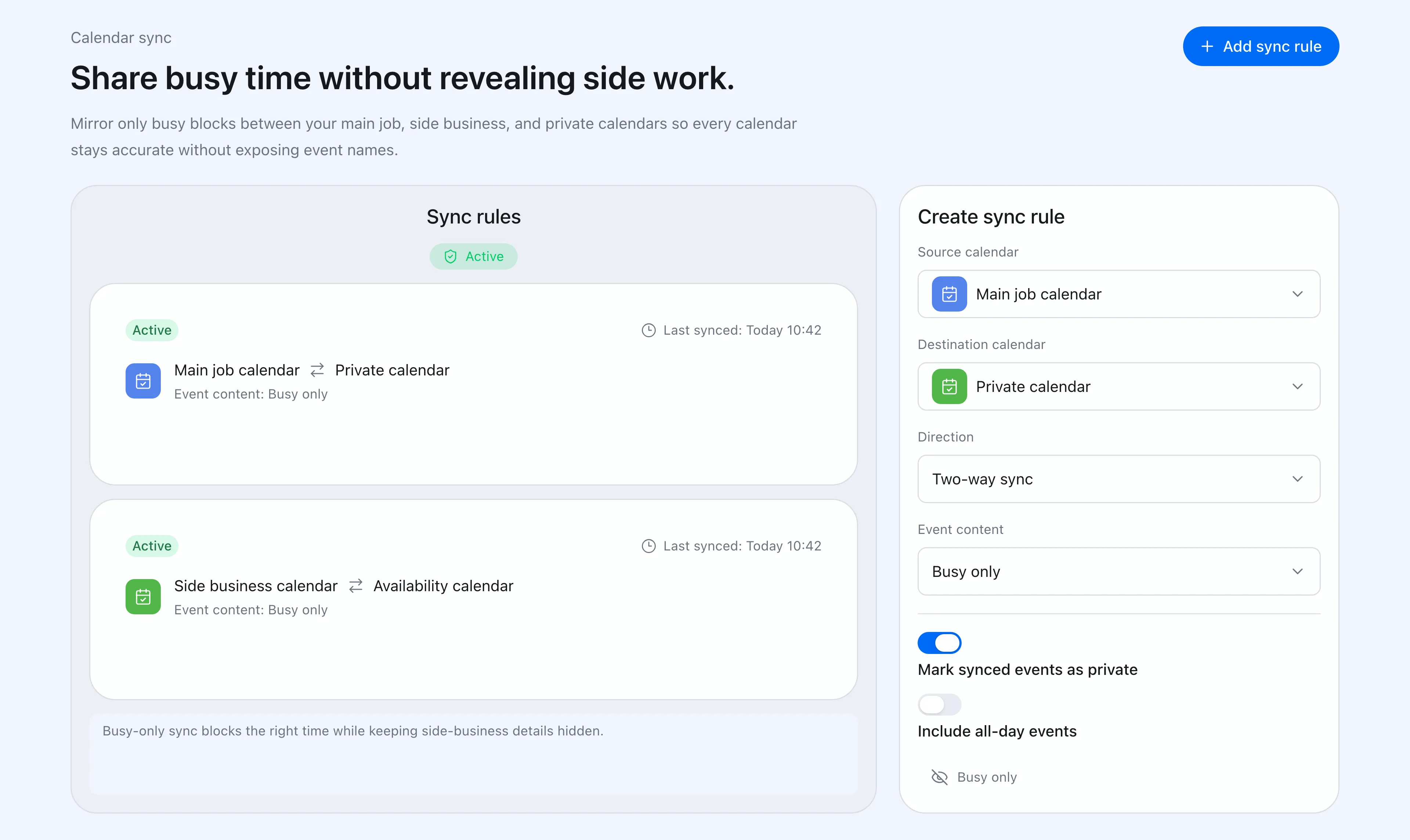 Sync rules control direction and how much detail reaches the destination: busy-only, title-only, or title and description.
For a concrete work-plus-personal setup, see our work/personal calendar sync guide.
Cause 2: a booking page that does not check all your calendars
When bookings arrive through a booking page — Google Calendar’s appointment schedules or a scheduling tool — what matters is which calendars that page checks for conflicts.
With Google Calendar’s appointment schedules, free personal accounts face limits on checking availability across multiple calendars (details in our free-tier guide).
If you use a scheduling tool, check how many calendars it can connect. Chronock connects multiple Google Calendars from the Free plan and publishes booking pages that respect all of them — a slot taken by your side business simply never appears as bookable on your work booking page. Free supports up to 2 connected calendars in total across Google and Outlook; Pro supports unlimited connections.
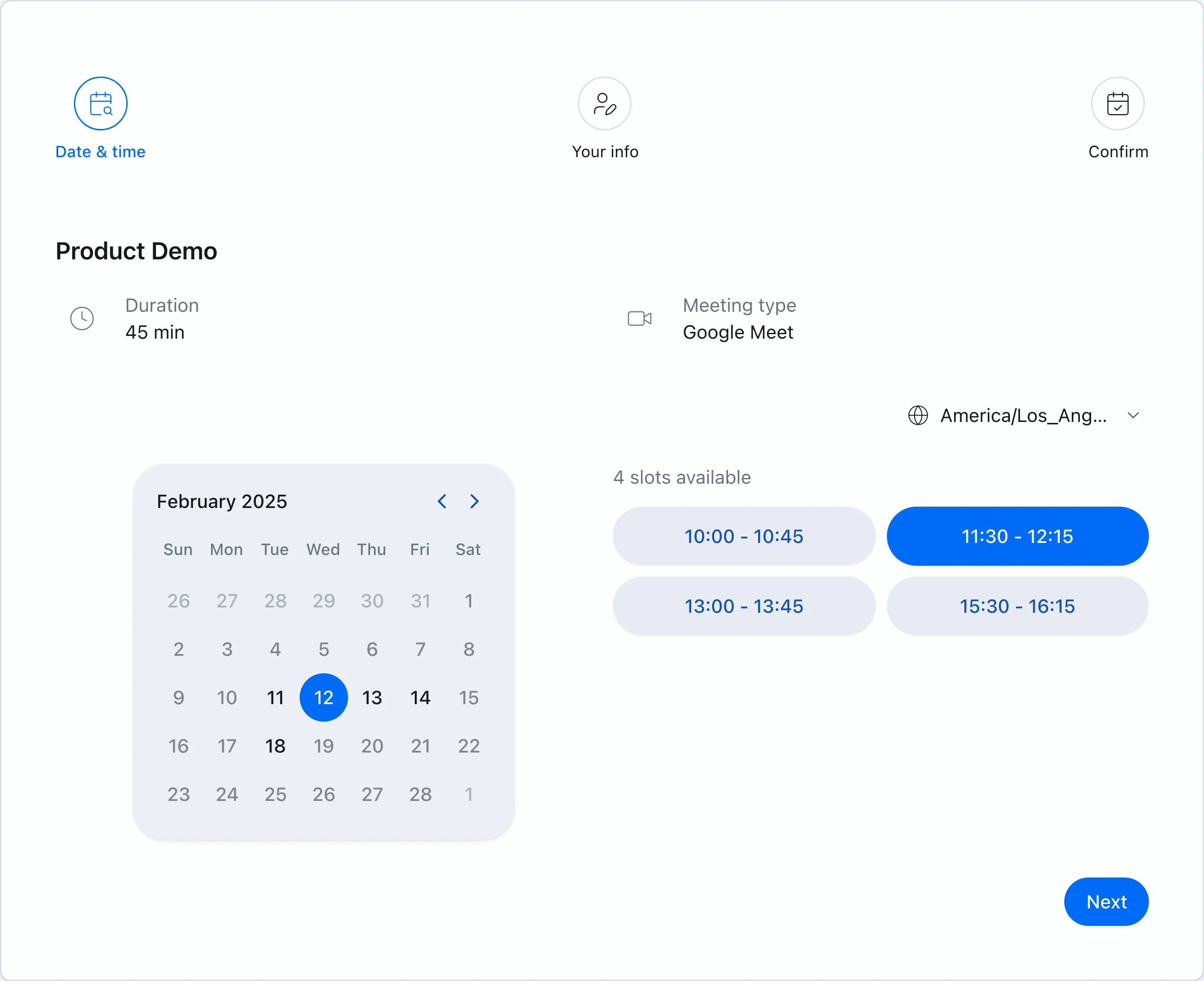 Booking pages show only times that are genuinely free across every connected Google Calendar.
More on how multi-calendar availability works in our multiple Google Calendars article.
Cause 3: proposed times sitting unprotected
Between sending candidate times and receiving a reply, those slots look free to everyone. Losing a proposed slot to a different meeting is the most frustrating double booking in scheduling.
Two fixes:
- Place tentative events yourself — add “HOLD: client call” events for each proposed time. Reliable, but you must remember to clean up declined candidates, or your calendar looks permanently full.
- Use provisional holds — Chronock’s candidate dates tool generates copy-friendly candidate times (free), and Pro adds provisional holds that protect proposed slots and release them automatically on confirmation or cancellation.
For how to write the candidate-time email itself, see our scheduling etiquette article.
Small operational habits that help
- Buffer your meetings — block 15 minutes before and after for travel and overruns.
- Watch “free” all-day events — all-day events default to free and are ignored by availability checks; switch blocking ones to “busy.”
- Use events, not reminders — reminders and tasks do not affect availability detection. If a time must be protected, make it an event.
Bottom line: match the fix to the cause
| Cause | Fix |
|---|---|
| Calendars cannot see each other | Sharing/overlay + calendar-to-calendar sync (one rule free on Chronock) |
| Booking page checks only one calendar | Multi-calendar availability detection (Chronock Free: up to 2 Google/Outlook calendars in total; Pro: unlimited) |
| Proposed times unprotected | Tentative events, or Pro provisional holds |
| Back-to-back meetings collide | Buffer time |
Double bookings are not solved by being more careful. Put one structural fix in place — calendars that block each other — and most of the accidents disappear.