Chronock calendar sync rule guide
Learn how to use Chronock calendar sync rules: one-way or bidirectional sync, busy-only, title-only, title and description, private copied events, and color settings.
Chronock calendar sync is not just a way to copy events into another calendar.
It lets you decide which calendar is the source, which calendar receives mirrored events, whether sync should be one-way or bidirectional, and how much event detail should appear on the destination calendar. With the right rule design, you can keep work, side-business, and personal calendars separate while still blocking the times that must not be double-booked.
This Chronock Tips guide explains each calendar sync rule setting and how to use it in practice.
What a calendar sync rule controls
When you create a sync rule, you mainly choose these settings.
| Setting | What it controls |
|---|---|
| Sync direction | Whether events sync one-way or in both directions |
| Source calendar | The calendar Chronock reads events from |
| Destination calendar | The calendar where Chronock creates copied events |
| Copied event details | Whether copied events show busy status only, title only, or title and description |
| Include all-day events | Whether all-day events should be synced |
| Create copied events as private | Whether copied events should be created as private on the destination calendar |
| Copied event color | The color used for copied events |
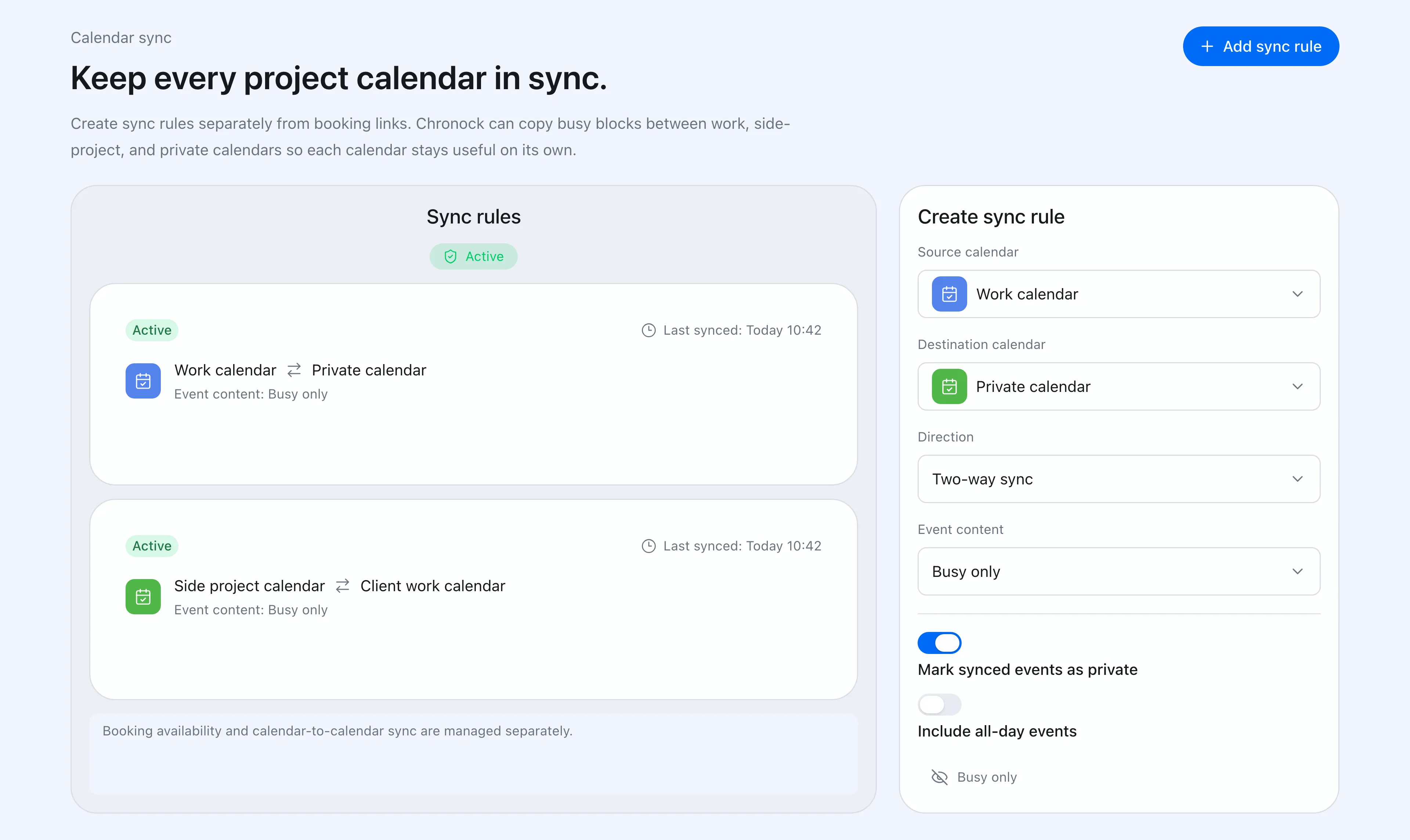 Chronock lets you define direction, source, destination, copied details, all-day events, privacy, and color in one sync rule.
The key question is simple: what information do you actually want to place on the destination calendar?
If you only need personal appointments to block your work calendar, you do not need to copy titles or descriptions. The time block is enough. If you are mirroring a project calendar into a team calendar, copying titles or descriptions may be useful.
Choose one-way or bidirectional sync intentionally
Sync direction is the first major design choice.
| Direction | Best for |
|---|---|
| One-way | Mirroring personal busy time into a work calendar |
| One-way | Blocking work availability from a side-business calendar |
| One-way | Bringing project events into your main calendar with title-only detail |
| Bidirectional | Keeping two operational calendars close to each other when either side may receive events |
One-way sync keeps the flow of information clear. Events from the source calendar are copied into the destination calendar, which is useful when the purpose is specific: personal to work, side business to main work, project to main calendar.
Bidirectional sync is useful when either calendar may be edited and both should reflect the other. In Chronock, bidirectional sync is managed as a linked pair of rules. That means both calendars need write access.
If you are unsure, start with one-way sync. It is easier to reason about, and you can add bidirectional sync later if the workflow truly needs it.
Control visibility with copied event details
The most important calendar sync decision is how much information appears on the destination event.
Chronock gives you three content levels.
| Copied event details | What appears on the destination calendar | Good for |
|---|---|---|
| Busy status only | A busy time block without the original title or description | Personal appointments, medical visits, family time, side-business meetings |
| Copy title | The title is copied, but the description is omitted | Project or client calendars where the title is safe to show |
| Copy title and description | Both title and description are copied | Internal calendars where the full detail is useful |
If the destination calendar only needs to know that you are unavailable, use busy-only. It blocks the time without carrying the original title or notes into the destination calendar.
If the destination calendar is mainly for your own planning, title-only can be a better balance. You still know what the time block is for, but you avoid copying longer notes. Use title and description only when the destination audience should actually see those details.
Combine privacy and color for cleaner destination calendars
Copied event details are separate from the setting that creates destination events as private.
Think of the two layers this way.
| Setting | Purpose |
|---|---|
| Busy status only | Prevent original titles and descriptions from being copied |
| Create copied events as private | Treat copied events as private events on the destination calendar |
| Copied event color | Make Chronock-created events easy to distinguish from manual events |
Visibility is not controlled by a single switch. First, choose how much information Chronock copies. Then use the private-event setting to align copied events with the destination calendar’s sharing model.
Color is also practical. A dedicated color makes it easier to tell whether a block was entered manually or mirrored from another calendar.
Decide carefully whether to include all-day events
All-day events can mean different things.
Some all-day events are true availability blockers, such as vacation or travel. Others are reminders, birthdays, deadlines, or notes that should not block your day.
Chronock lets you decide whether all-day events are included in each sync rule.
| Workflow | Recommended setting |
|---|---|
| Vacation or full-day absence should block availability | Include all-day events |
| Deadlines and notes should not block the destination calendar | Do not include all-day events |
| Different calendars use all-day events differently | Decide per rule |
A conservative starting point is to leave all-day events out, then enable them only for calendars where all-day entries truly represent unavailable time.
Practical rule patterns
Calendar sync is easier to operate when each rule has a narrow purpose.
| Goal | Suggested rule |
|---|---|
| Block work availability from personal appointments | Personal → Work, one-way, busy-only, private, dedicated color |
| Hide side-business details from a main work calendar | Side business → Work, one-way, busy-only, private |
| See project events on your main calendar | Project → Main, one-way, copy title |
| Share detailed events within a team | Source → Shared, one-way, copy title and description |
| Keep two operational calendars close | Bidirectional, copy only the minimum detail needed |
For a fuller side-business example, see calendar management and event sync for side businesses. The useful first step is to separate information you want to show from information you only need to use for availability.
Manage rules after creation
Sync rules are operational settings. They may need to change when a project ends, a calendar is replaced, or you want to pause a workflow temporarily.
| Action | When to use it |
|---|---|
| Pause | Stop syncing but keep the rule available |
| Resume | Start a paused rule again |
| Delete | Retire the rule and clean up events created by that rule |
When you delete a rule, events created by that rule on the destination calendar are also removed. Chronock tracks the mirrored events it creates so it can update, delete, and clean them up instead of leaving stale copied blocks behind.
Chronock-created events also carry internal tracking data. That helps Chronock follow updates and deletions, and it helps prevent bidirectional sync from endlessly copying the same mirrored event back and forth.
Start with one focused one-way rule
Calendar sync is powerful, but you do not need to connect every calendar in both directions on day one.
Start with the most important conflict you want to prevent.
- Pick the calendar pair where double-booking hurts most.
- Create a one-way rule with busy-only details.
- Make copied events private and give them a distinct color.
That setup blocks availability without exposing event details. Once the workflow feels right, you can add title-only rules, include all-day events for specific calendars, or use bidirectional sync where both sides genuinely need to stay aligned.
The Free plan includes one one-way, busy-only calendar sync rule. Multiple rules, two-way sync, and title or description visibility are available on Pro (7-day free trial). If you manage multiple calendars, start by deciding which events should appear where and how much detail each destination calendar should receive.