What to decide before syncing work and personal Google Calendars
Learn how to prevent double bookings while keeping work and personal Google Calendars separate. We compare calendar sharing, booking-page availability checks, and event sync.
When you use both a work Google Calendar and a personal Google Calendar, the separation itself can cause double bookings.
Your work calendar looks open, but a personal appointment or side-business meeting is already there. Or you add a personal appointment and later receive a work meeting for the same time.
Before you decide to “sync the calendars,” clarify one thing: which calendar should show what, and to whom?
This article explains how to prevent double bookings while keeping work and personal calendars separate. It compares calendar sharing, booking-page availability checks, and calendar-to-calendar event sync.
Decide these three things first
Before connecting work and personal calendars, separate three questions.
| Question | Example |
|---|---|
| Who needs to see it? | Only you, teammates, or booking-page guests |
| Where should it be reflected? | Just in your view, in booking-page availability, or as an event on another calendar |
| How much detail should be visible? | Busy only, title only, or title and description |
If you only want to avoid missing events yourself, showing both calendars in one view may be enough.
If you only want a booking page to avoid personal appointments, adding the personal calendar to the availability check may be enough.
But if teammates or internal tools only look at your work calendar, the work calendar itself needs busy blocks.
Pattern 1: Show both calendars in your own view
The lightest option is to share your personal calendar with your work account, then display both calendars in the work account.
Google’s help article on sharing your calendar explains the permission levels. If you do not want event details to appear, use free/busy visibility so the shared calendar only shows blocked time.
This helps you personally avoid missed conflicts because both calendars appear in one view.
The limit is that the personal event is not created on your work calendar. If teammates only check your work calendar, they may still see that time as open.
Pattern 2: Include both calendars in booking-page availability
If the problem is double bookings from a scheduling link, include multiple calendars in the booking page’s availability check.
Google Calendar appointment schedules can check availability across selected calendars on eligible plans. Google’s help article on checking availability across multiple calendars explains that busy events on selected calendars are removed from the booking page.
This is useful when guests book through your scheduling page. Personal appointments block those slots without exposing the event details.
Important limits:
- Some related features require an eligible plan.
- It affects booking-page availability, not the work calendar itself.
- It does not prevent teammates from manually booking over your personal time.
- Company admin settings may limit external calendar sharing.
This is a strong option for booking links, but not enough if the work calendar itself needs to be blocked.
Pattern 3: Create busy blocks on the work calendar
If teammates or internal tools only check the work calendar, personal availability needs to appear on the work calendar too.
Manually, this means creating a “Busy” or “Private” event on your work calendar at the same time as each personal event. You hide the details and only block the time.
This works, but it does not scale.
- Every new personal event needs to be copied.
- Time changes need to be copied again.
- Cancelled events need to be removed.
- Recurring and all-day events require extra care.
- Event titles or notes can leak if you forget to remove them.
Once the number of events grows, manual copying becomes the risk.
You do not need to merge everything into one calendar
Preventing double bookings does not mean all events must live in one calendar.
Keeping calendars separate is often useful:
- Notifications and colors stay organized.
- Work, personal, and side-business events stay separated.
- Sharing permissions can differ by calendar.
- Calendars are easier to disconnect after a job change or project end.
- Event details are easier to control.
The goal is not to merge every event. The goal is to share the unavailable time accurately.
Chronock lets separate calendars stay separate
Chronock connects multiple Google Calendars for availability detection and calendar-to-calendar sync.
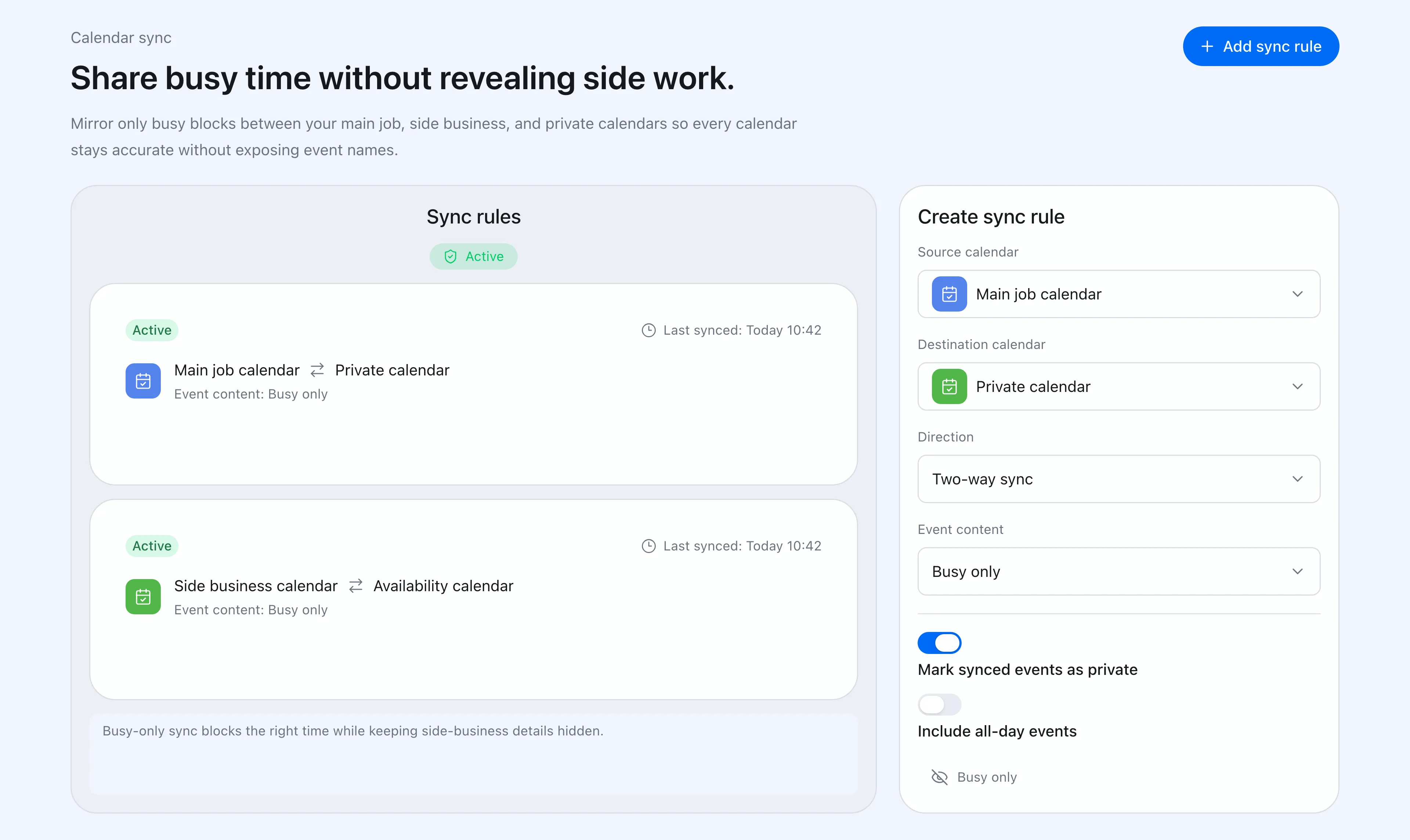 Chronock lets you create sync rules between work, side-business, and personal calendars.
Example setups:
| Goal | Chronock setup |
|---|---|
| Reflect personal events on a work calendar as time blocks | Sync personal to work as busy-only |
| Hide side-business details from the main job calendar | Sync side-business to work as busy-only |
| Show only titles on a project calendar | Sync title only |
| Make booking pages avoid multiple calendars | Include connected calendars in availability detection |
The Free plan includes multiple Google Calendar connections for availability detection, plus one one-way, busy-only calendar sync rule. Multiple rules, two-way sync, and title or description visibility are available on Pro, with a 7-day free trial. Free supports up to 2 connected calendars in total across Google and Outlook; Pro supports unlimited connections.
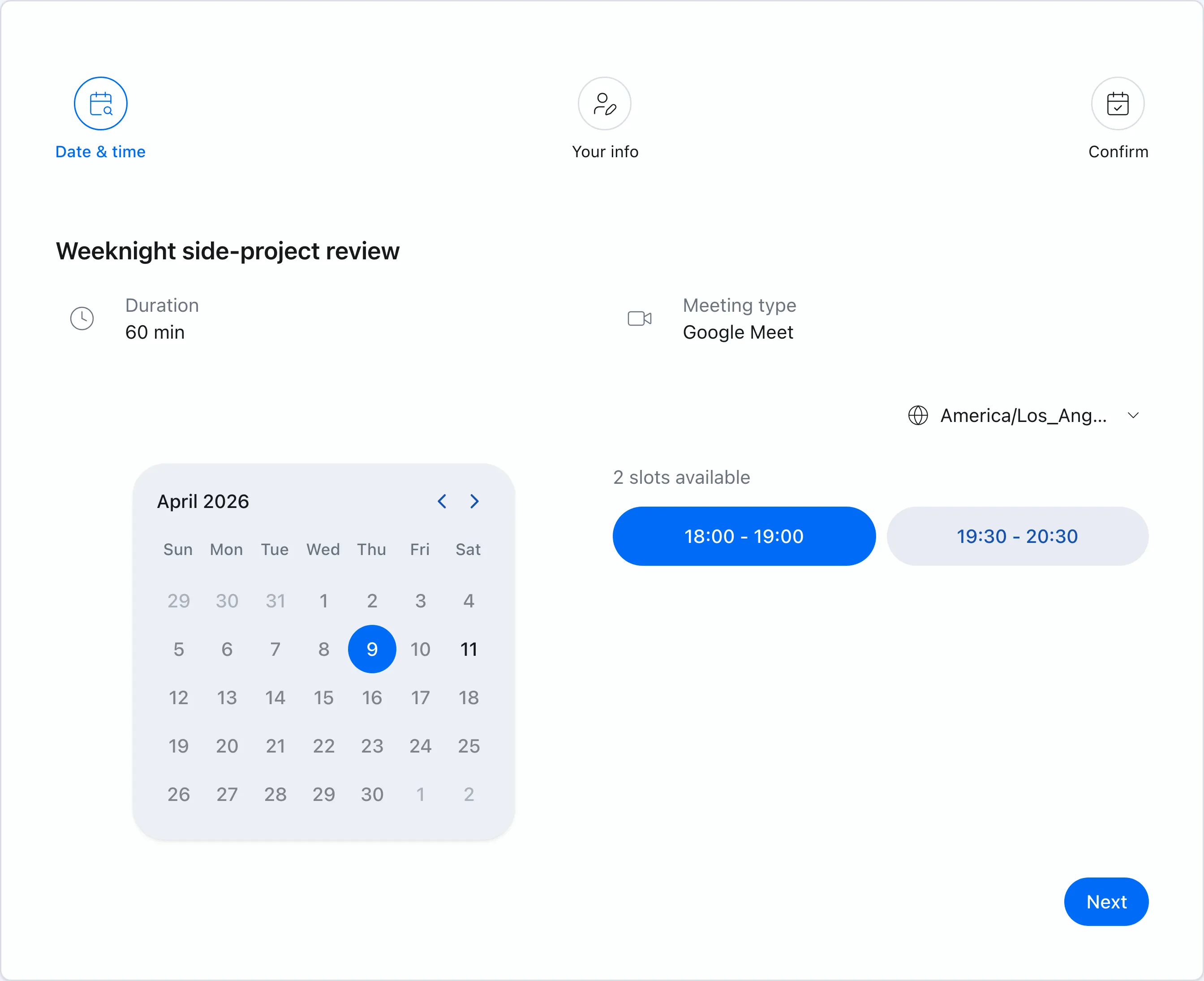 Chronock booking pages show only times that are actually bookable across your connected calendars.
Which method should you choose?
| Situation | Start with |
|---|---|
| You only need to see both calendars yourself | Calendar sharing |
| You only need booking links to avoid conflicts | Multi-calendar availability checks |
| Your work calendar itself needs to be blocked | Busy-only sync |
| Event details must stay hidden | Sync with busy-only visibility |
If Google Calendar sharing is enough, use it. But if another calendar needs actual busy blocks, sync rules are more reliable than manual copying.
Chronock helps keep work and personal calendars separate while reflecting the unavailable time where it matters.