For contractors, fractional executives, and advisors

Every client account, in one calendar.

Two professionals discussing plans with a tablet at a table in a bright office

Client A runs on Google Workspace, Client B on Microsoft 365, and each gave you an account. Checking your week means signing in and out. Chronock is an integrated calendar that shows and edits all of those calendars on one screen. It copies “Busy” blocks into each client’s calendar, so Client A doesn’t book over your Client B meeting.

View pricing
  • Google and Outlook accounts side by side
  • Other clients see only “Busy”
  • One booking link that checks every client

Switching between client calendars all day?

Every new engagement adds another calendar account. None of them knows about the others, so the checking and the conflicts land on you.

Signing in and out to check Client A’s Google Calendar and Client B’s Outlook

Client A booking a meeting on top of your Client B meeting because they can’t see it

Not being able to put Client B’s meeting names on Client A’s calendar

Adding “busy” blocks to each client calendar by hand and fixing them when plans change

Comparing every calendar before you can propose a time for a new meeting

Integrated calendar

Put every client account in one calendar

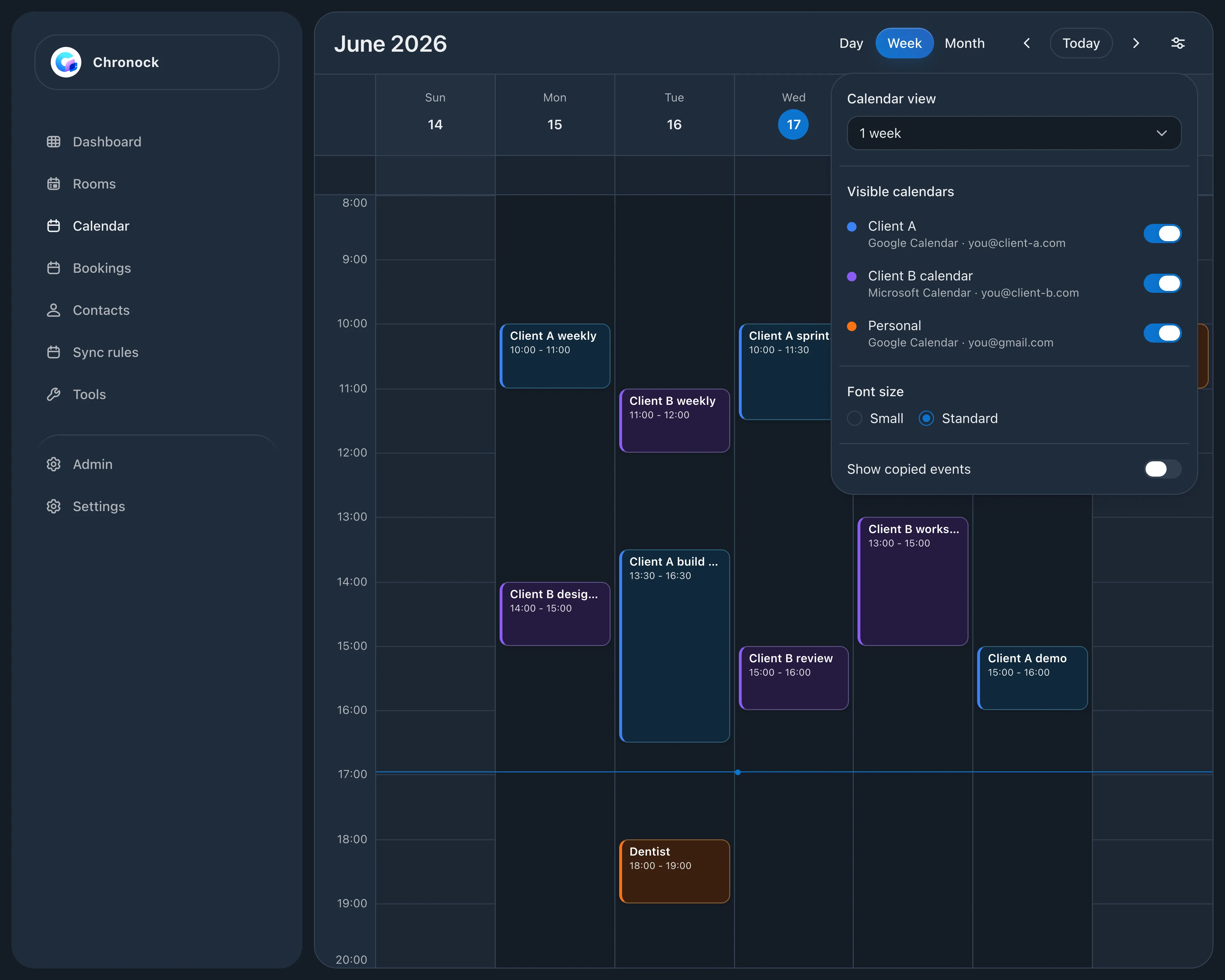
Connect the Google Workspace and Microsoft 365 accounts your clients gave you, plus your personal Google account, and see every event together in day, week, or month view. You can create and edit events on the same screen and choose which calendar each one is saved to. Events stay in each client’s Google Calendar or Outlook, as before.

  • Google Calendar and Outlook events in one week view
  • Show or hide each calendar from display settings
  • Pick Client A, Client B, or personal when you create an event
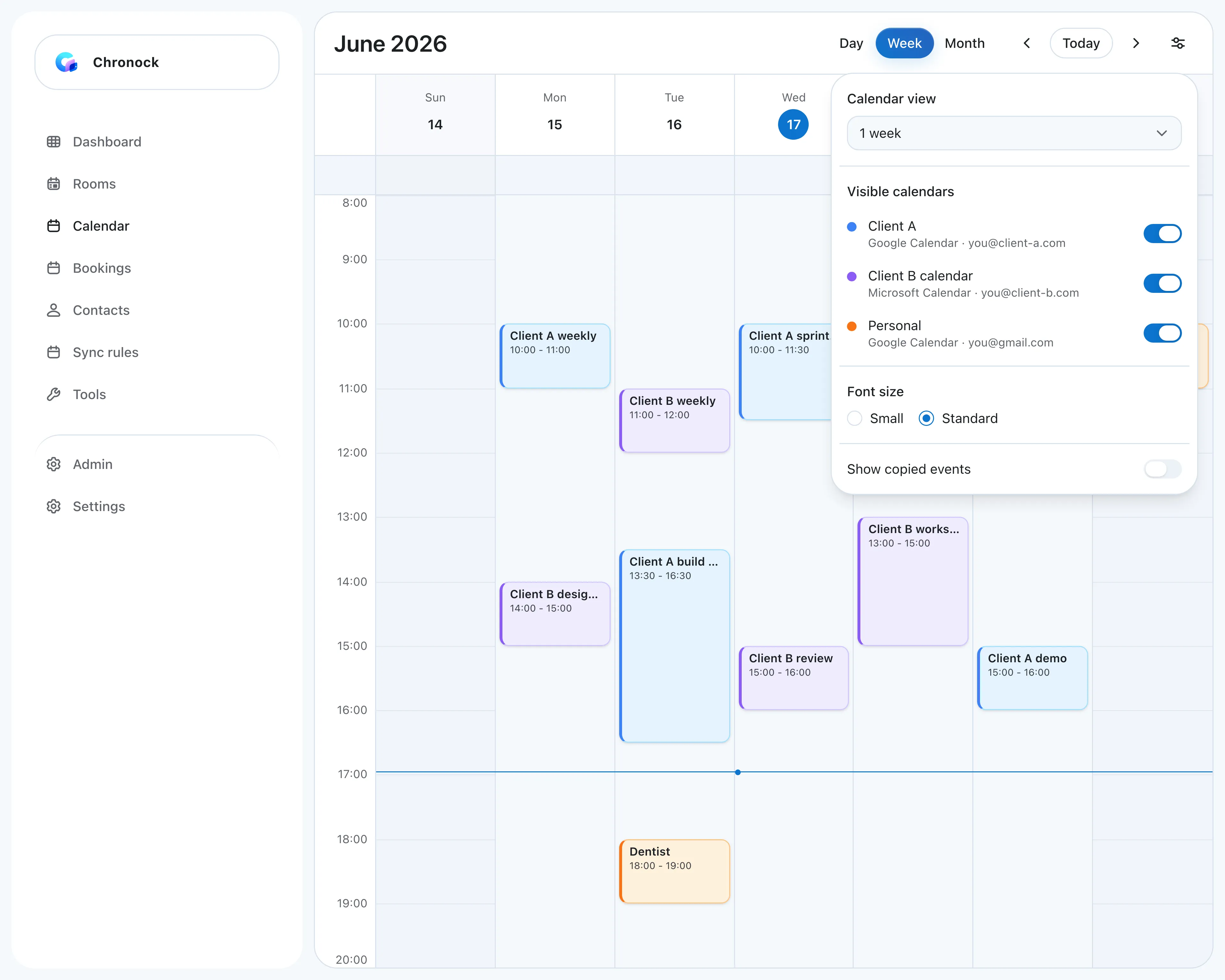
Integrated calendar week view combining Client A’s Google Calendar, Client B’s Outlook calendar, and a personal calendar, with display settings listing each calendar and its account
Calendar sync

Copy other clients’ meetings as “Busy” only

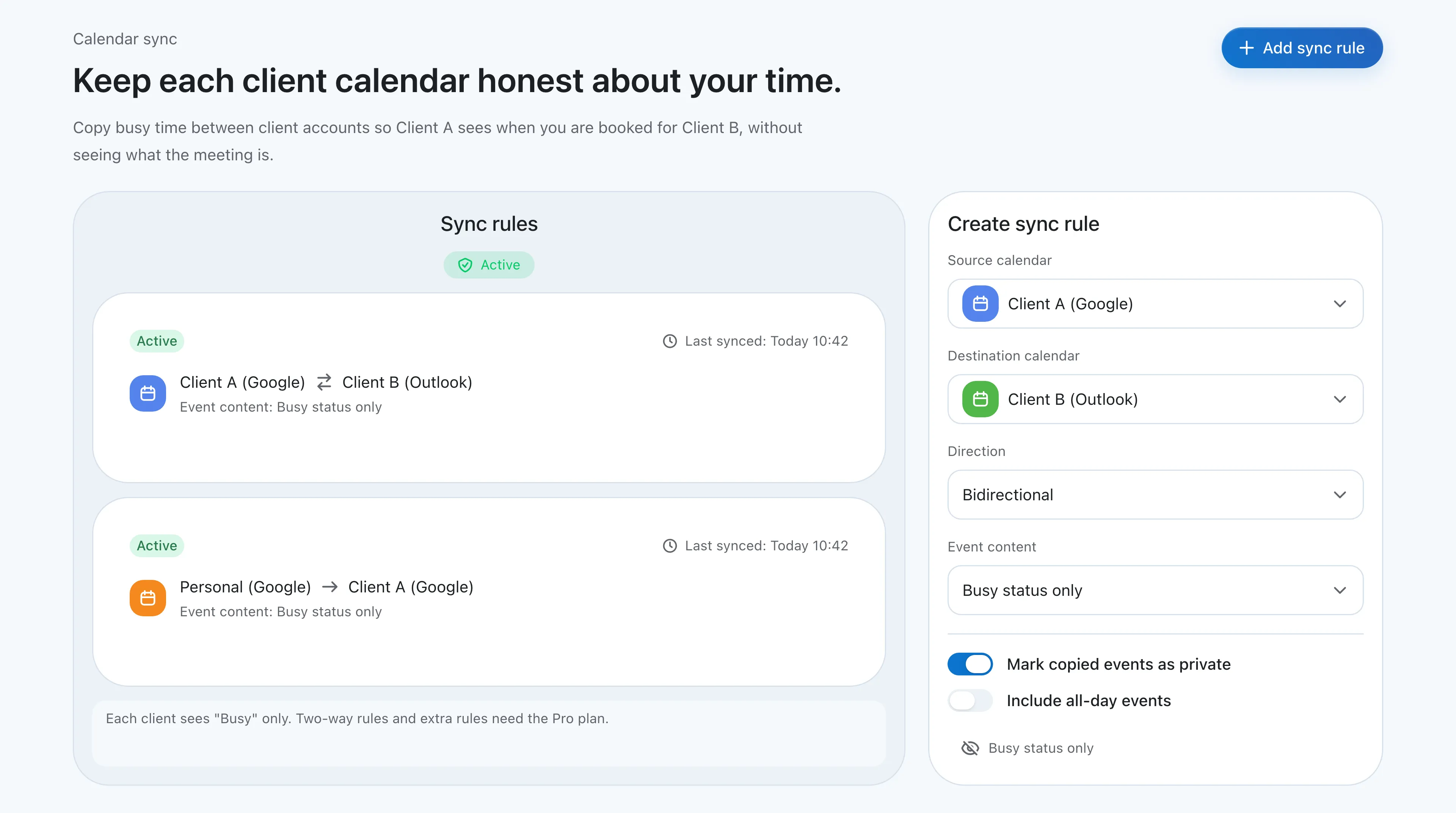
Chronock copies Client A’s events to Client B’s calendar, and Client B’s events to Client A’s, as events titled “Busy”. When someone at either client checks your availability, those times show as taken. Copies follow changes and cancellations automatically.

  • Destinations show only “Busy”; titles and details stay hidden
  • Works between Google Calendar and Outlook
  • Free includes 2 connections and one one-way, Busy-only rule; two-way copying and more rules need Pro
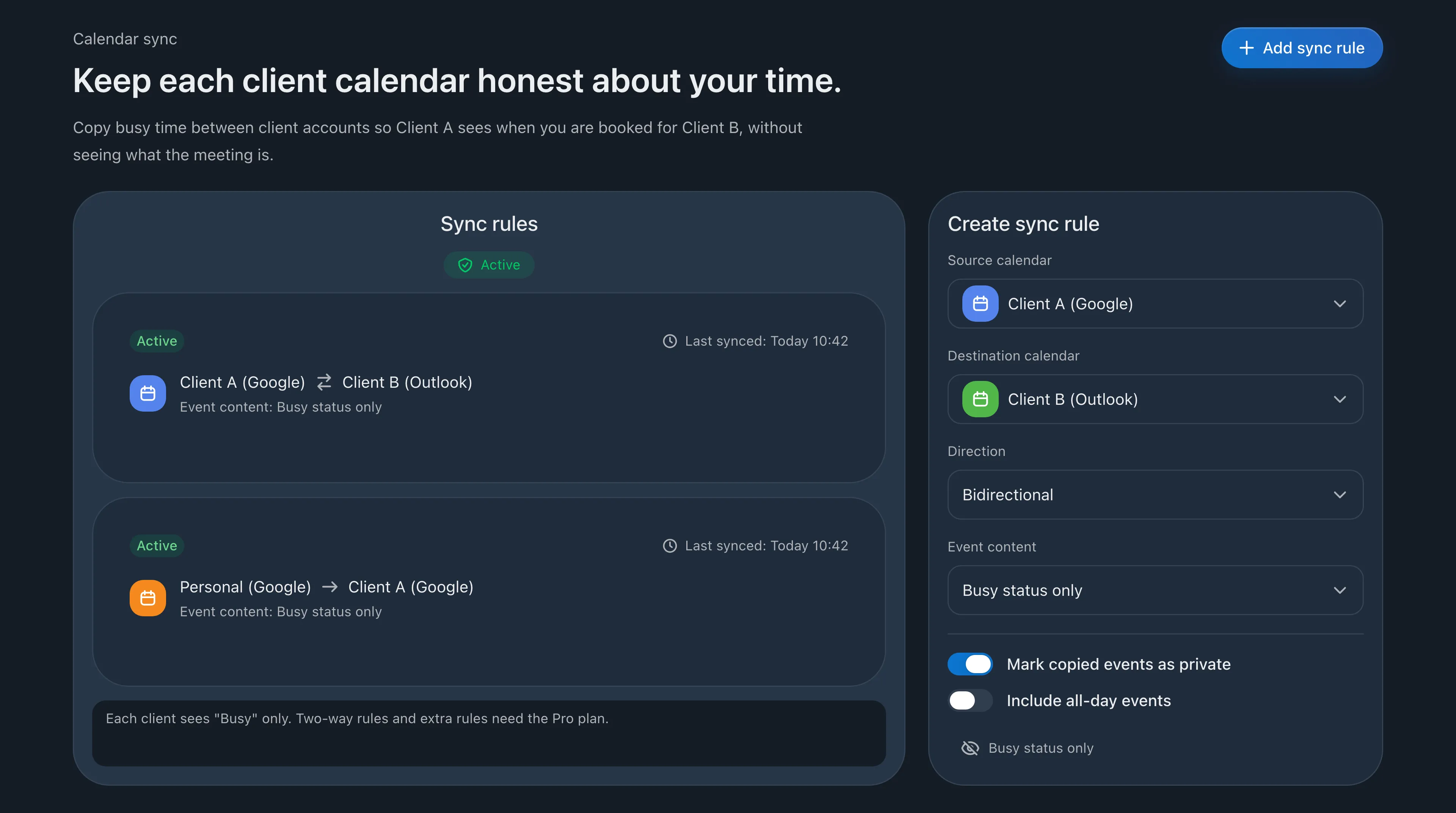
Sync rules screen with a two-way rule between Client A (Google) and Client B (Outlook) and a one-way rule from Personal to Client A
Booking link

Schedule your own meetings around every client

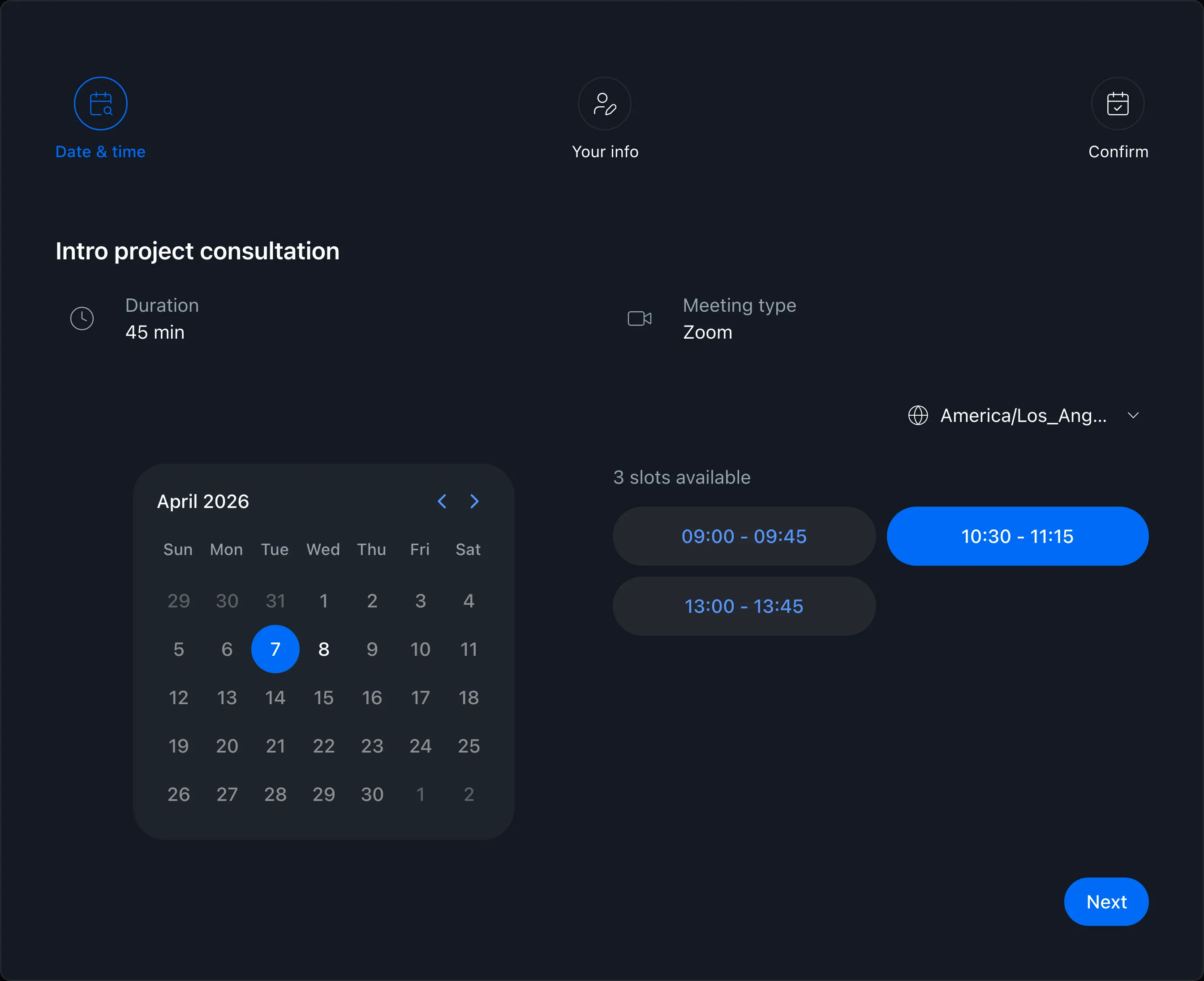
Use a booking link for new-client calls or meetings you organize. Availability is checked across every connected calendar, so the times you offer never clash with any client. You can also copy candidate times as text to paste into an email.

  • Availability checked across Client A, Client B, and personal calendars
  • Guests simply pick a time on your booking page
  • Copy candidate times as text for email or chat
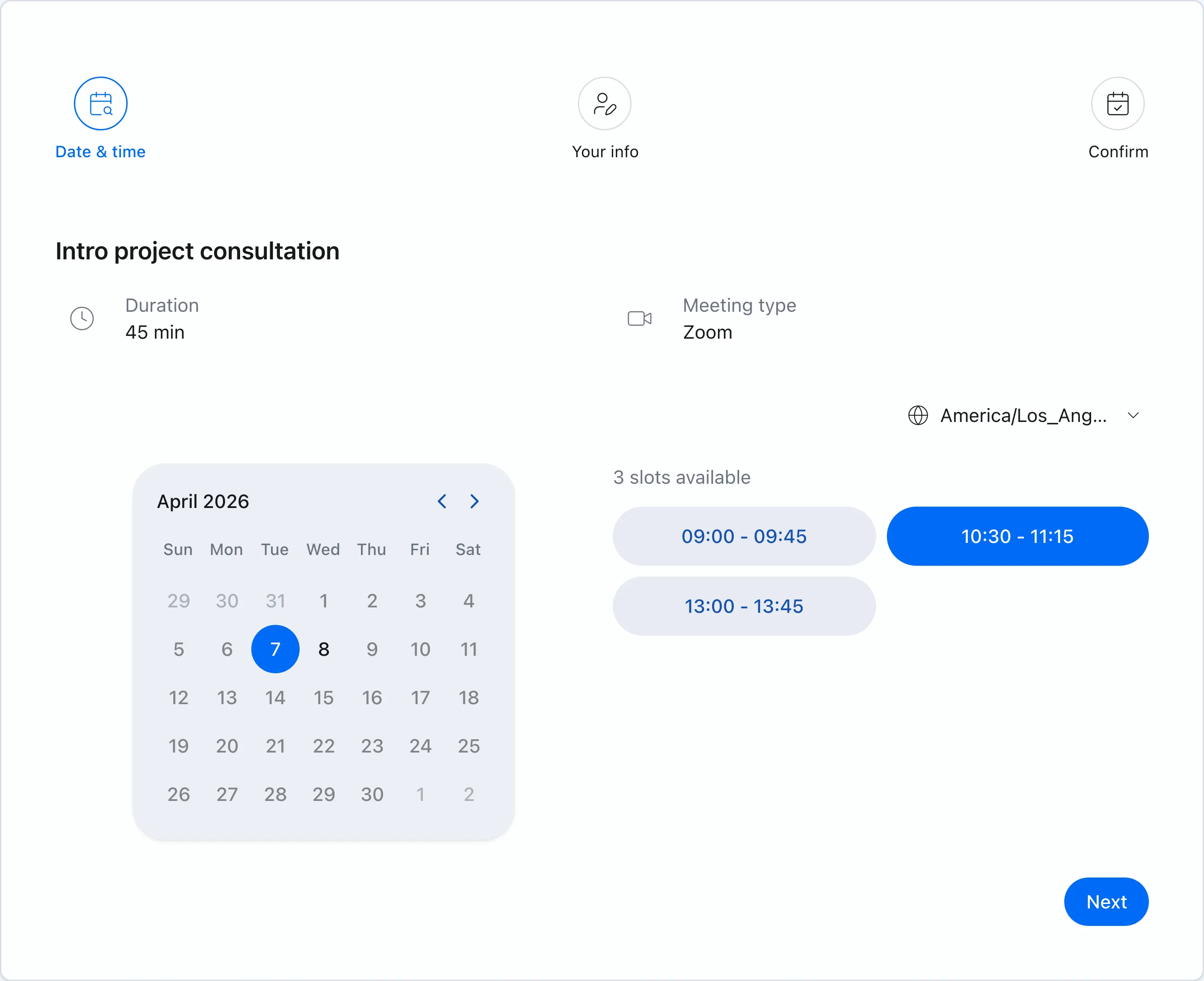
Booking page showing available times

FAQ

Can I connect the accounts my clients gave me?
Yes. Google Workspace and Microsoft 365 accounts can be connected. If a client’s admin restricts third-party apps, they may need to allow Chronock before you can connect. It’s also worth checking each client’s policy on adding copied events to their calendars.
Does Outlook work with any Microsoft account?
Chronock supports Microsoft 365 work or school accounts. Personal Microsoft accounts such as Outlook.com and Hotmail can’t be connected, because Microsoft Graph doesn’t provide the free/busy data Chronock needs for them.
What does Client A see of my Client B meetings?
With a Busy-only rule, Client A’s calendar gets events titled “Busy” at the same times, with no meeting names or descriptions. You can also mark the copies as private.

Related articles

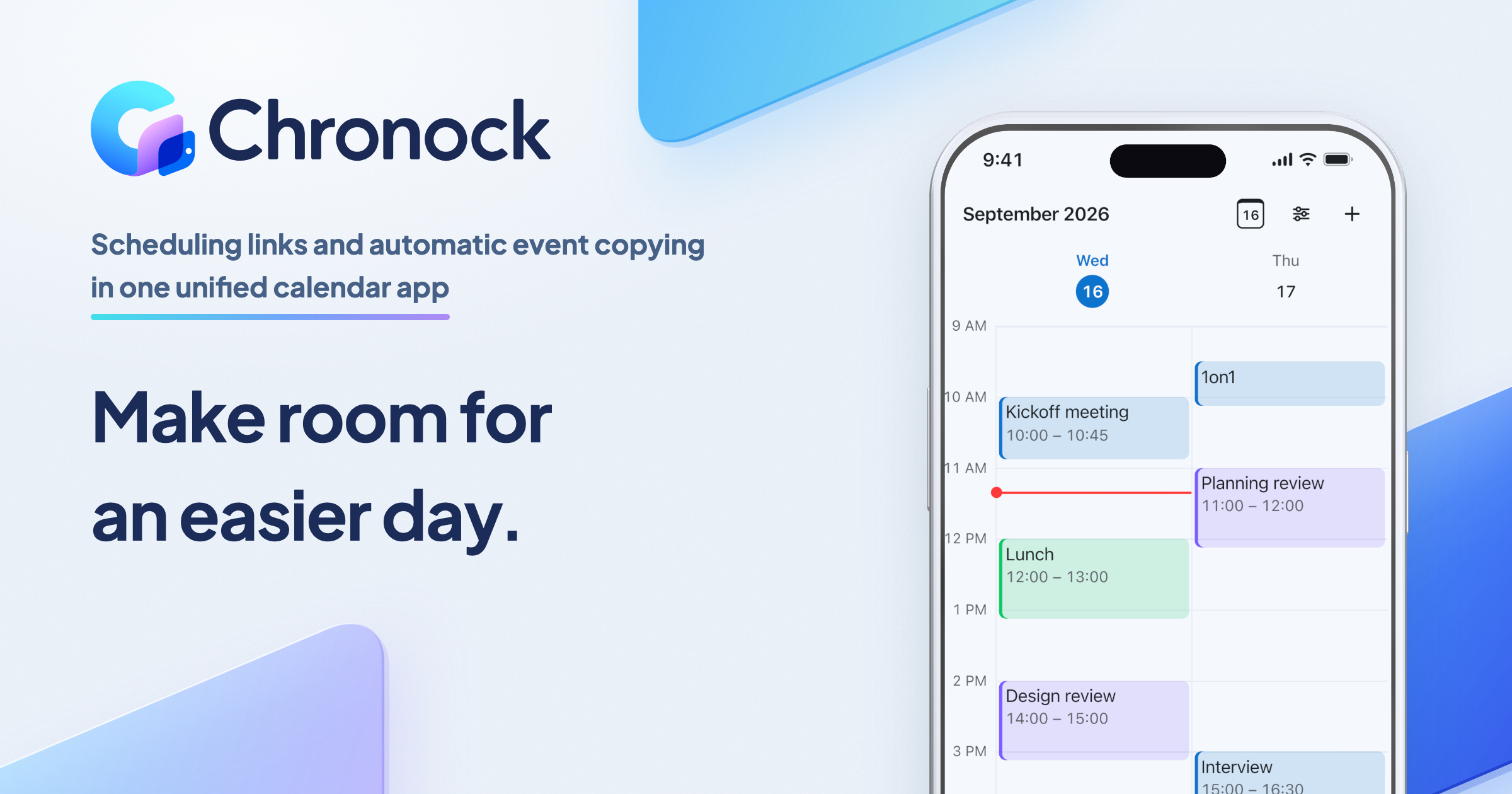
Chronock logo and the integrated calendar on a phone

Chronock

Your calendars and scheduling, all in one place.

Manage Google Calendar and Outlook, share booking pages, and stop double booking with automatic event copying. Start free.

Free

For one person starting with scheduling links and automatic event copying

$0/month

  • 1 active booking slot
  • Shareable booking page
  • Up to 2 connected calendars
  • Zoom and Slack integrations
  • 1 one-way calendar sync rule (Busy only)
Get started free

Pro

For teams scheduling together, or anyone who needs multiple or two-way sync rules

Most popular

$6.67+/ user / month

Effective monthly price with annual billing

  • Unlimited booking slots
  • Unlimited one-way and bidirectional sync with event details
  • Group scheduling
  • CRM (bookings & contacts)
Start 7-day Pro trial