Google Calendar appointment schedules: free for Gmail?
Are Google Calendar appointment schedules free? Yes, personal Gmail accounts get one free booking page. See what is free, what is premium, and the limits.
Yes, Google Calendar appointment schedules are available on free personal Google accounts. If you have a standard @gmail.com address, you do not need a paid Google Workspace subscription to create a shareable booking page.
Personal Google accounts include one free booking page. Google Workspace Business Starter also includes one booking page without an extra scheduling fee, but Business Starter itself is a paid subscription. However, advanced options—such as multiple booking links, automated email reminders, and checking availability across multiple calendars—are locked behind eligible paid plans.
This guide explains what you get for free, what counts as a premium feature, which accounts are eligible, and where the free tier falls short for freelancers and solo professionals.
Quick answer
Here is a direct summary of how Google Calendar appointment schedules work across personal and paid tiers:
- Is it available for personal Gmail accounts? Yes. You can set up a booking page and share the link without paying for Google Workspace or Google One.
- How many booking pages can you create for free? One. If you want separate links for 15-minute consultations and 60-minute deep dives, you need an eligible plan or an external scheduling tool.
- Do guests need a Google account? No. Anyone with your booking link can pick a time.
- Who cannot create appointment schedules? According to Google’s official documentation, users on Google Workspace Frontline, Google Workspace Essentials, and legacy or older Workspace plans cannot create appointment schedules.
Free vs. premium feature comparison
| Feature | Free personal account | Google One Premium / AI Pro / AI Ultra | Workspace Individual | Other eligible Workspace plans* |
|---|---|---|---|---|
| Booking schedules | 1 | Multiple | Multiple | Multiple |
| Check multiple calendars | No | Yes | Yes | Yes |
| Automatic email reminders | No | Yes | Yes | Yes |
| Payments and email verification | No | No | Yes | Yes |
| Secondary calendars and up to 20 co-hosts | No | No | No | Yes |
| Guest needs a Google account | No | No | No | No |
*Business Standard and Plus, Enterprise Standard and Plus, Education, and Nonprofits. Features vary by subscription; see Google’s official comparison. Business Starter includes one booking page within its paid subscription, without these premium scheduling features.
What you get for free
If your scheduling needs are straightforward, the free tier on a personal Google account covers the essentials.
According to Google’s help guide on creating an appointment schedule, the free single booking page includes:
- A shareable booking link: A dedicated web page where clients or colleagues can view open times and reserve an appointment.
- Appointment duration: Choose how long each appointment is.
- General availability rules: Define recurring weekly operating hours (for example, Monday through Friday, 9:00 AM to 5:00 PM).
- Buffer time: Automatically add padding before or after scheduled events so meetings do not run back-to-back.
- Booking window: Set how far in advance and how close to the start time people can book.
- Automatic calendar event creation: Once a guest confirms, the appointment is added to your calendar as an event.
For freelancers, coaches, and consultants who only offer one standard meeting format, these capabilities provide a clean booking flow without third-party tools.
Premium features and which plans include them
When your scheduling workflow expands, several features need an eligible paid plan.
As outlined in Google’s guide to compare premium features for appointment schedules, the following capabilities are classified as premium features:
- More than one booking schedule: Create distinct booking pages with different durations, availability windows, and custom form fields.
- Automated email reminders: Send automated reminder emails to guests prior to the meeting to decrease no-show rates.
- Multi-calendar availability: Google Calendar can check multiple calendars for conflicts before displaying open slots, preventing double-bookings with personal or project schedules.
- Paid appointments: Accept payments for appointments.
- Email verification: Verify guests’ email addresses to prevent spam bookings.
- Secondary calendars: Add appointment schedules to secondary calendars, not just your primary calendar.
- Co-hosts: Add up to 20 co-hosts for appointments.
Eligible plans for premium appointment schedules
Not every paid Google plan includes every feature. Google One Premium and Google AI Pro/Ultra cover multiple schedules, reminders, and multi-calendar checks, but not payments, email verification, secondary calendars, or co-hosts. Workspace Individual adds payments and email verification, but not secondary calendars or co-hosts.
According to Google’s plan chart, these plans include premium features. Not every plan includes every feature, so check the chart for the one you need:
- Personal subscriptions:
- Google One Premium
- Google AI Pro & Ultra
- Google Workspace subscriptions:
- Google Workspace Individual
- Google Workspace Business Standard
- Google Workspace Business Plus
- Google Workspace Enterprise Standard and Plus
- Google Workspace for Education
- Google Workspace for Nonprofits
Note: Google Workspace Business Starter accounts are limited to a single booking page and do not include these premium scheduling features. Google Workspace Frontline, Essentials, and older legacy Workspace plans cannot create appointment schedules.
How to set it up on a personal account
Setting up an appointment schedule on a personal Gmail account takes only a few minutes, but it comes with one platform limitation: you must use a desktop browser.
Google does not support creating or editing appointment schedules within the Google Calendar mobile apps on Android or iOS. You must access Google Calendar via calendar.google.com on a computer. Booked appointments still show up in the mobile app like any other event.
Quick setup steps
- Open Google Calendar on your desktop browser.
- At the top left, click Create, then select Appointment schedule.
- Set your title, appointment duration, weekly scheduling window, and buffer times.
- Click Next, then adjust the booking page and booking form settings.
- Click Save.
- Open the schedule and use Share to copy the booking page link.
For a detailed step-by-step walkthrough, see our tutorial on how to set up a Google Calendar appointment schedule.
When the free version is enough / where it falls short
The free appointment schedule is practical for straightforward use cases, but growing operations quickly run into constraints.
When the free version is enough
The free single schedule works well if:
- You only need one standardized meeting format (for example, a single 30-minute discovery call).
- All your commitments live strictly on your single primary Google Calendar.
- You do not need to collect payments up front.
- You do not require automated email reminders to minimize missed appointments.
- You do not need to coordinate schedules with co-workers or co-hosts.
Where the free version falls short
1. You need separate booking links for different meeting types
A single booking page forces you to treat every meeting identically. If you offer 15-minute introductory chats, 45-minute consultations, and 60-minute technical reviews, one link cannot accommodate different lengths, intake forms, or working hours.
2. You manage multiple calendars
If you maintain separate personal, work, side-project, or family calendars, Google Calendar’s free schedule will not look at them. It checks conflicts only against the calendar the schedule belongs to. According to Google’s documentation on checking availability across multiple calendars, multi-calendar availability checks require an eligible paid plan. Without this, you risk double-booking whenever an event is scheduled on a secondary or personal calendar.
3. No automated reminders
The free tier does not send automated reminder emails ahead of calls. You have to remind guests yourself.
4. Handling holidays and company days off
Google Calendar appointment schedules rely on weekly recurring availability blocks. They do not automatically block regional public holidays or irregular days off. You must remember to manually mark individual dates as unavailable on your calendar. For workaround techniques, see our guide on how to exclude holidays from Google Calendar appointment schedules.
5. Presenting candidate times directly in an email
A booking link is not always the best customer experience. In high-touch sales, executive outreach, or formal business correspondence, sending a raw booking link can feel impersonal. Google Calendar only provides a link; it does not offer a way to extract open slots as formatted text to paste into an email. For alternatives, see how to share available times instead of sending a scheduling link.
What Chronock adds
If you hit the limits of the free version but do not want to upgrade your Google plan just for scheduling, consider Chronock: a unified calendar app with scheduling links and automatic event copying. It connects to your existing Google and Outlook calendars instead of replacing them.
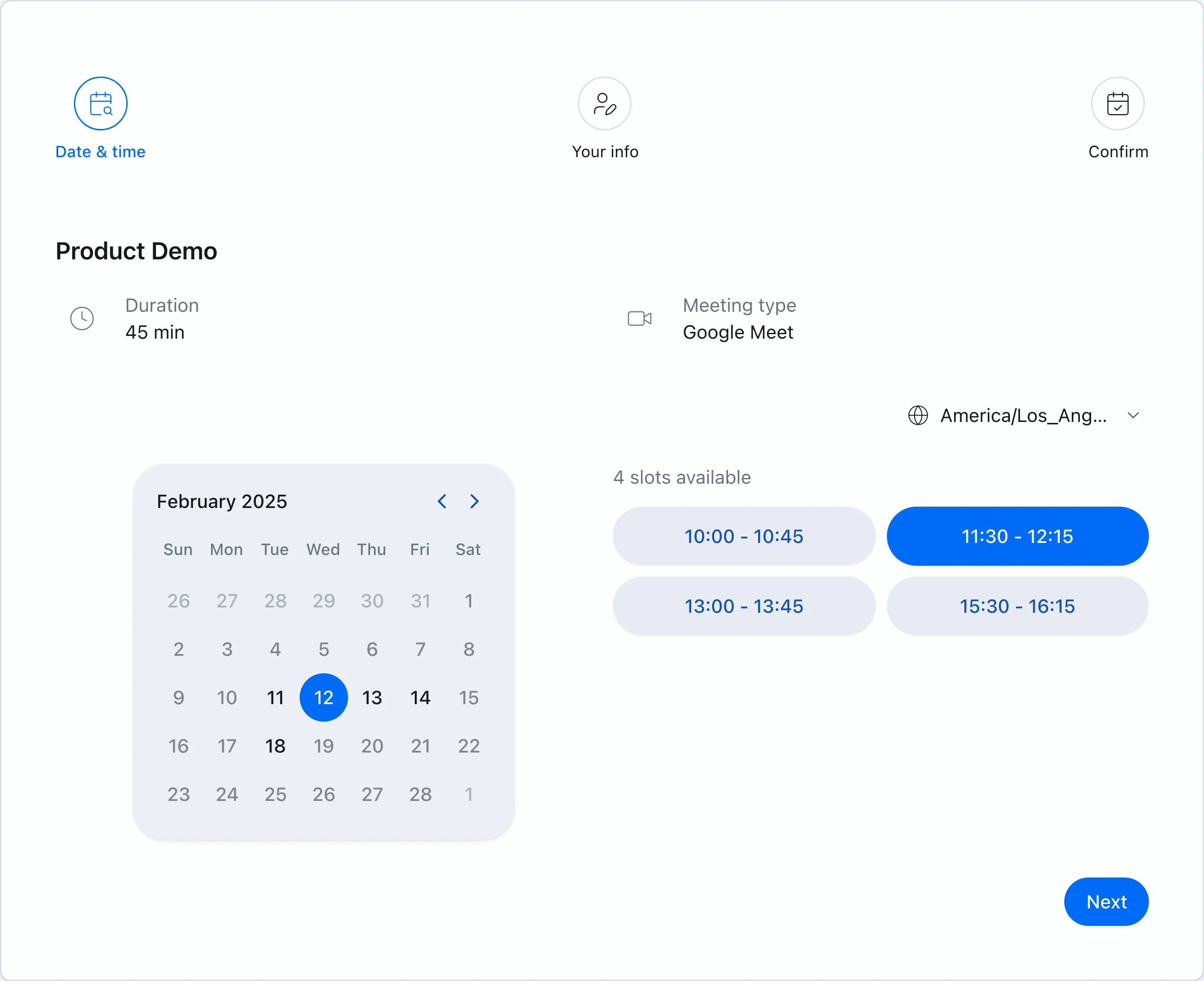 Chronock booking pages show only times that are actually available based on your connected Google and Outlook calendars.
Chronock Free vs. Pro
- Chronock Free:
- 1 user.
- 1 booking slot.
- Availability detection across connected calendars (up to 2 connected Google and Microsoft 365 Outlook work or school calendars in total).
- One one-way, busy-only calendar sync rule.
- Holiday blocking.
- Candidate dates tool to paste open times directly into email.
- Chronock Pro:
- Unlimited booking slots for all your meeting types.
- Unlimited connected Google and Microsoft 365 Outlook work or school calendars.
- Multiple sync rules with two-way sync and title/description sync.
- Provisional holds (reserving proposed times while awaiting replies).
- Built-in CRM and booking history.
- Multi-person and team scheduling.
Matching your scheduling needs to the right tool
| Your scheduling need | Google Calendar (Free Personal) | Chronock Free | Chronock Pro |
|---|---|---|---|
| Single meeting link | Included | Included | Included |
| Multiple meeting links | Requires eligible paid plan | Not included (1 slot) | Unlimited slots |
| Multi-calendar availability | Requires eligible paid plan | Up to 2 Google/Outlook calendars | Unlimited calendars |
| Automatic event copying between calendars | Not available | 1 one-way, busy-only sync rule | Two-way and title/description sync rules |
| Holiday blocking | Block dates manually | Holiday blocking | Holiday blocking |
| Candidate times in email | Not available | Candidate dates tool | Candidate dates tool |
| Provisional holds | Not available | Not available | Included |
| Client CRM & history | Not available | Not available | Included |
Google Calendar appointment schedules provide a solid, free foundation if you only ever need one booking link tied to one calendar. When your workflow requires availability checks across multiple calendars, holiday blocking, candidate text for emails, or true calendar synchronization, a dedicated tool like Chronock fills the gap.
Frequently asked questions
Is Google Calendar appointment scheduling free for personal Gmail accounts?
Yes, a personal Google account (@gmail.com) can create and share one booking page without a subscription fee. Workspace Business Starter includes one booking page without an extra scheduling fee, but the Business Starter subscription is paid.
How many booking pages can I create for free?
You can create one booking page on a free personal Google account or a Google Workspace Business Starter account. Creating two or more booking schedules requires an eligible Google One or Google Workspace subscription, or a dedicated scheduling tool.
Does the guest need a Google account to book a time?
No. Anyone who receives your booking page link can reserve a time slot. They do not need a Google account or Google Calendar to complete the booking.
What are Google Calendar premium features?
Google Calendar premium scheduling features include:
- Creating more than one booking schedule.
- Automated email reminders for booked guests.
- Checking availability across multiple calendars.
- Accepting payments for appointments.
- Verifying guests’ email addresses to prevent spam bookings.
- Adding appointment schedules to secondary calendars.
- Adding up to 20 co-hosts to a booking schedule.
Availability depends on the subscription. Google One Premium and Google AI Pro/Ultra include multiple schedules, reminders, and multi-calendar checks. Workspace Individual also includes payments and email verification. Secondary calendars and co-hosts require Business Standard/Plus, Enterprise Standard/Plus, Education, or Nonprofits. See the plan comparison above before choosing a subscription.