How to Exclude Public Holidays from Google Calendar Appointment Schedules
Google Calendar's appointment schedules don't block public holidays automatically. Learn the official per-date fix and a bulk technique using a dedicated holiday-blocking calendar.
Google Calendar’s appointment schedules turn your availability into a booking page: share the link, and guests simply pick an open slot to confirm a meeting.
There is one pitfall that catches many people once they start using it, though. Guests can book you on public holidays. The holiday calendar is right there in Google Calendar, yet the booking page happily offers slots on those days. This article explains why that happens, and how to fix it.
Why holidays show up as bookable
Availability in an appointment schedule is defined as a weekly recurring pattern, such as “Monday to Friday, 10:00 AM–5:00 PM.” Public holidays are not part of that model.
Displaying a holiday calendar (like “Holidays in United States”) does not block bookings either:
- An appointment schedule only blocks times covered by “Busy” events on the calendars it checks for availability
- Holiday calendar entries are informational all-day events, treated as “Free”
- Google’s holiday calendars cannot be selected as calendars to check for availability in the first place
As a result, your booking page keeps offering slots on holidays, and a meeting can get confirmed on a day off before you notice.
The flip side: as long as a “Busy” event sits on the holiday, the booking is blocked. That is the principle behind the technique below.
Method 1: Block dates one by one with adjusted availability
First, the official Google Calendar setting. Appointment schedules let you override availability for specific dates.
- Open the appointment schedule event in Google Calendar and click edit (the pencil icon)
- Below your recurring availability, click “Change a date’s availability”
- Pick the holiday you want to exclude, select “Unavailable all day,” and save
See Google’s official help article “Update your availability for appointments” for details.
This works fine for blocking the next few holidays. But the setting is per schedule and per date: if you run multiple booking pages you repeat it for each one, holidays are never added automatically, and you keep registering every holiday by hand, year after year.
Method 2: Build a “holiday blocker” calendar and exclude them all at once
To block a whole year of holidays in one go, a little preparation goes a long way. The idea is simple:
- Create one calendar where every public holiday is covered by a “Busy” event
- Add that calendar to the calendars your appointment schedule checks for availability
Every appointment schedule that references this calendar will then exclude holidays automatically. Here is how, step by step.
Step 1. Get the holiday data
The easiest source is the iCal file of Google’s own public holiday calendar. For example, opening this URL downloads basic.ics with United States holidays:
https://calendar.google.com/calendar/ical/en.usa%23holiday%40group.v.calendar.google.com/public/basic.icsThe same works for other countries — Google publishes an equivalent public calendar for Japan, France, Germany, Taiwan, and many more regions.
Step 2. Convert the events to “Busy”
This is the crucial part. If you import the .ics file as is, the holidays come in as “Free” events and block nothing.
Open the .ics file in a text editor, replace every TRANSP:TRANSPARENT with TRANSP:OPAQUE, and save. The events will now import as “Busy.”
While you are at it, delete the blocks (BEGIN:VEVENT through END:VEVENT) of any observances that are not actual days off — Google’s holiday calendars often mix in dates like Valentine’s Day or Mother’s Day.
Step 3. Create the blocker calendar and import
- In Google Calendar, click “+” next to “Other calendars,” choose “Create new calendar,” and name it something like “Holiday blocker”
- In Settings, go to “Import & export” → “Import,” then select the edited
.icsfile and the “Holiday blocker” calendar as the destination
After importing, open one of the holiday events and confirm it shows as “Busy.”
Step 4. Add the calendar to the availability check
Open your appointment schedule for editing and add the “Holiday blocker” calendar under “Calendars checked for availability.” Done — holiday slots no longer appear on your booking page.
Caveats
- Checking availability across multiple calendars is a premium feature. It requires a paid subscription such as a Google Workspace plan or Google One Premium, and is not available on free personal accounts (Compare premium features — Google Help). On a free account, import the edited holiday data into your primary calendar instead for the same effect — just note that undoing it later means deleting the events one by one
- The published data only covers the next few years, so you need to re-import before it runs out
- Public holidays occasionally change by law; re-import from fresh data when they do
Or pick a scheduling tool with holiday blocking built in
As we have seen, excluding holidays with Google Calendar alone means either blocking dates by hand or maintaining a download → edit → import → yearly-refresh routine.
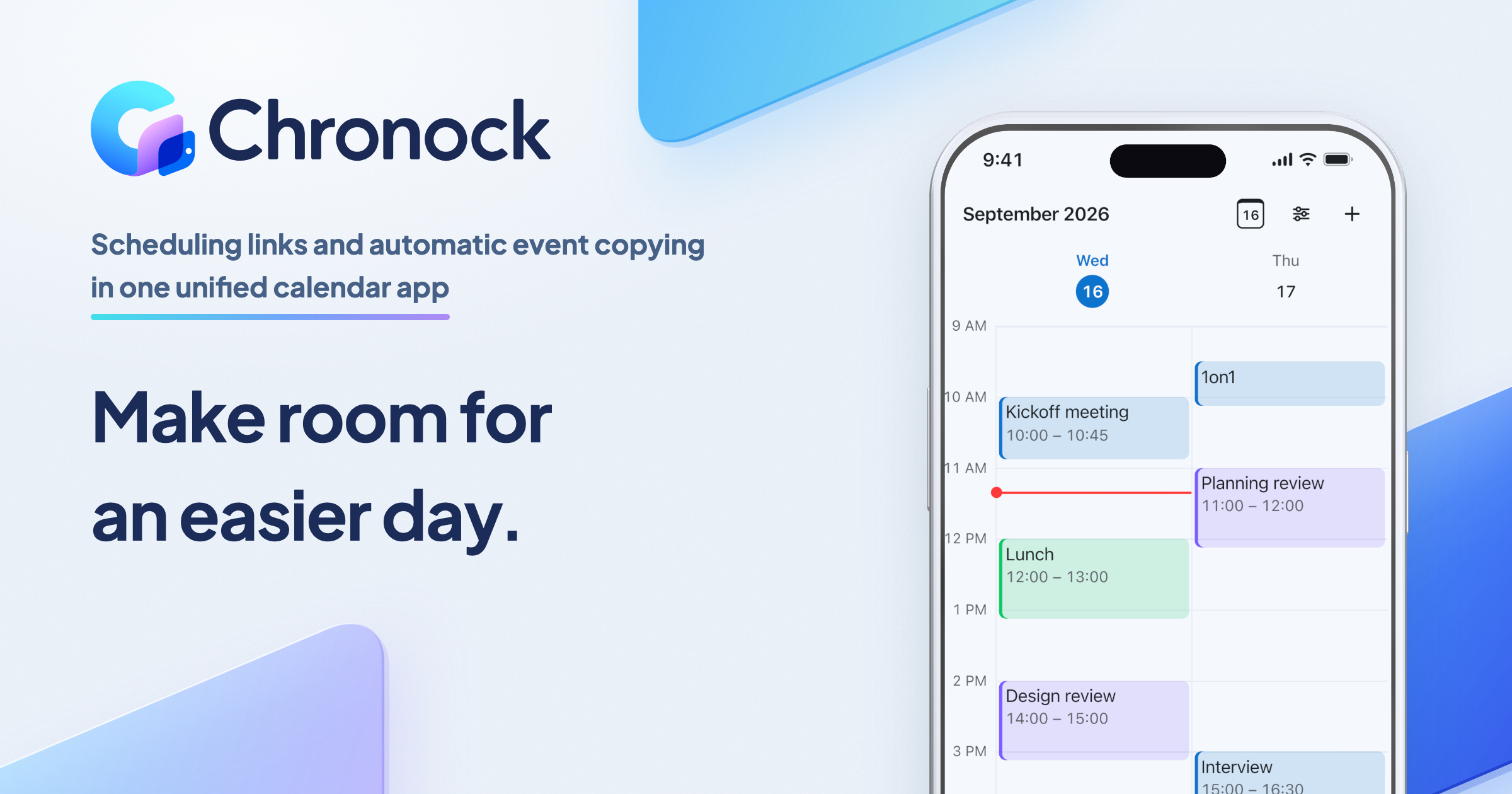
The scheduling tool Chronock ships with holiday blocking as a standard feature. Enable it on a booking slot, and public holidays are excluded from your bookable times automatically — no data preparation, no yearly maintenance. Coverage is region-based (currently Japanese public holidays), so contact us if you need another region.
Combined with availability detection across multiple Google Calendars, it is available starting on the free plan; cross-calendar event sync that prevents double bookings is available on the Pro plan. If you would rather never maintain holiday settings again, give it a try.