How to Copy Outlook Calendar Events to Google Calendar (One at a Time, in Bulk, or Automatically)
Copy Outlook events to Google Calendar one at a time, in bulk with an .ics file, by URL subscription, or automatically. Steps and limits for each method.
Your job runs on Outlook. Your personal life runs on Google Calendar. Sooner or later you want some of those Outlook events in Google Calendar too.
Maybe you want to see work meetings in the Google Calendar app on your phone. Maybe you only need next week’s business trip on your personal calendar. Maybe your company is moving from Outlook to Google Workspace and you need to bring your events over.
Outlook and Google Calendar are separate services, so there is no one-click “Copy to” between them the way there is between two Google calendars. The built-in features still give you several ways to do it.
This article groups them into three kinds: one event at a time, in bulk, and automatically. Each section covers the steps and where the method stops working.
Method 1: Copy one event at a time
If you only need a few events, handling them one by one is the most reliable option.
Re-create the event in Google Calendar
The simplest way:
- Open the event in Outlook.
- Note the date, time, title, and anything else you want to keep.
- Create a new event at the same time in Google Calendar and save it.
If you don’t want work details on your personal calendar, title it “Work” or “Busy” and only block the time.
The new event is a real Google Calendar event, so it counts when someone checks your availability on the Google side. The downside: if the Outlook event moves, the Google copy stays at the old time.
Forward the Outlook invite to your Gmail address
For meetings, you can forward the invitation to your Gmail address. Microsoft describes forwarding in Forward a meeting in Outlook.
- Open the meeting in Outlook.
- Select Forward, enter your Gmail address, and send.
- In Gmail, respond to the invitation. The event is added to Google Calendar.
When a Gmail invitation lands on your calendar depends on the “Add invitations to my calendar” setting in Google Calendar (see Google’s Manage invitations in Calendar).
Know the tradeoffs before you do this:
- The organizer is notified. Microsoft’s help page says the organizer receives a notification when you forward a meeting. An internal meeting can end up looking like it has a personal Gmail address on it.
- Some meetings can’t be forwarded. Organizers can turn off forwarding, and some companies block forwarding to outside addresses.
- Meeting details leave the company. The subject, attendees, and meeting link go to your Gmail account. Check your company’s policy first.
Treat this as a way to copy the occasional meeting you were invited to, not a routine.
Method 2: Copy events in bulk with an .ics file
To move many events at once, export the Outlook calendar as an iCalendar (.ics) file and import it into Google Calendar.
Export an .ics file from Outlook
Microsoft’s Export an Outlook calendar to Google Calendar covers classic Outlook for Windows:
- In classic Outlook, open Calendar and select the calendar to export.
- Select File > Save Calendar.
- Select More Options to choose the date range and how much detail to include.
- Select OK, then Save.
These steps are for classic Outlook. If you use the new Outlook or Outlook on the web, use calendar publishing instead (Method 3).
Import the .ics file into Google Calendar
From Google’s Import events to Google Calendar. Importing works from a computer, not the mobile app.
- Open Google Calendar on your computer.
- Select the gear icon, then Settings.
- In the left menu, select Import & export.
- Select “Select file from your computer” and choose the .ics file.
- Pick the destination calendar and select Import.
If you don’t want work events mixed into your main personal calendar, create a separate calendar first (for example, “From Outlook”) and import into it. It is easier to clean up later.
Imported events don’t update
Microsoft is explicit that the export is a snapshot. If an Outlook event changes or is canceled after you import, the Google Calendar event stays as it was.
- Importing the same file twice can create duplicates.
- Guests and meeting data are not imported, according to Google’s help page.
- To catch up with changes, you have to export and import again.
This is a good fit for migrating accounts or keeping a record up to a certain date. It is a poor fit for keeping up with a calendar that changes every week.
Method 3: Subscribe by URL to show Outlook in Google Calendar
You can publish your Outlook calendar as an ICS link and subscribe to it in Google Calendar. This shows the Outlook calendar inside Google Calendar rather than copying events.
Microsoft’s Share an Outlook calendar as view-only with others has the steps. In the new Outlook and Outlook on the web:
- Open Calendar settings, then Calendar > Shared calendars.
- Under Publish a calendar, pick the calendar and how much detail to share.
- Select Publish and copy the ICS link.
Then, in Google Calendar, select the + next to “Other calendars”, choose “From URL”, paste the link, and select “Add calendar” (Google’s steps are in its Calendar help).
After that one setup, Outlook events keep appearing in Google Calendar. The limits:
- Slow refresh. You can’t set how often a subscribed calendar refreshes, and changes can take several hours or longer to show up.
- Read-only. The events are only shown in your Google Calendar view. They are not events on your own calendar, so people checking your Google Calendar availability, and most booking tools, still see you as free.
- Your company may turn it off. Microsoft notes that admins can set a policy that prevents calendar sharing. Some companies don’t allow publishing work calendars outside the organization at all.
- The link needs care. Anyone with the ICS link can read the calendar.
If you only need to see Outlook events yourself, this is free and often enough.
Method 4: Copy Outlook events automatically with Chronock
If you want the Google Calendar copy to change every time the Outlook event changes, you need a tool that copies events automatically.
Chronock is a unified calendar app that also handles scheduling and automatic event copying. Connect both your Outlook and Google calendars, create a sync rule that sets the direction and what gets copied, and Chronock copies Outlook events into Google Calendar from then on.
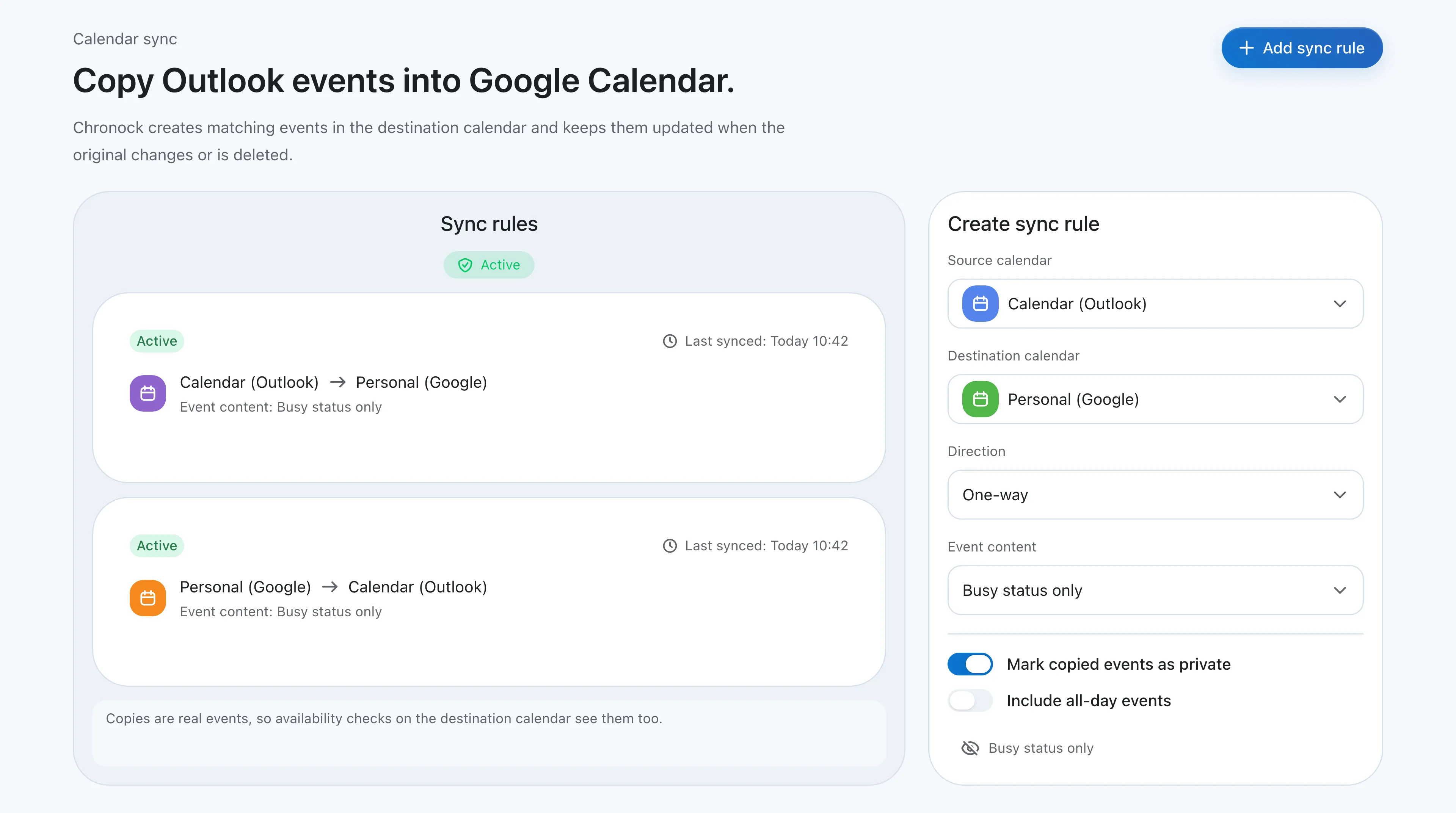 A one-way, “Busy status only” rule from an Outlook calendar to a personal Google calendar. The reverse rule is set up on the same screen.
The setup:
- Connect Google Calendar and your Outlook calendar to Chronock.
- In Sync rules, pick your work Outlook calendar as the source and your personal Google calendar as the destination.
- Set the direction to One-way, and choose “Busy status only” or copy the title as well.
How this differs from copying by hand
The copies Chronock creates are real events on your Google calendar.
- When an Outlook event is created, changed, or deleted, the Google copy is created, changed, or deleted too.
- Because they are real events, Google Calendar availability checks and booking pages see them.
- With “Busy status only”, each copy is titled “Busy”. Meeting names and attendees never reach your personal calendar.
- Each rule can mark copies as private and include all-day events.
Use “Busy status only” if work details shouldn’t live on your personal calendar. Copy titles if you want to read meeting names in the Google Calendar app on your phone.
Your events still live in Outlook and Google Calendar. Chronock doesn’t replace either one; it writes events into both.
The reverse direction, and one view of both
The same screen can hold a rule from your personal Google calendar to your work Outlook calendar. Set to “Busy status only”, a dentist appointment or daycare pickup shows up on your work calendar as “Busy”, so coworkers checking your free/busy in Outlook see that time as taken. For how to set this up to prevent double booking, see How to Sync Google Calendar with Outlook.
Sometimes you don’t need copies at all, just one place to see everything. Chronock’s integrated calendar shows several Google accounts and your Outlook (Microsoft 365) calendar together in day, week, or month views, and you can create and edit events on either provider from there.
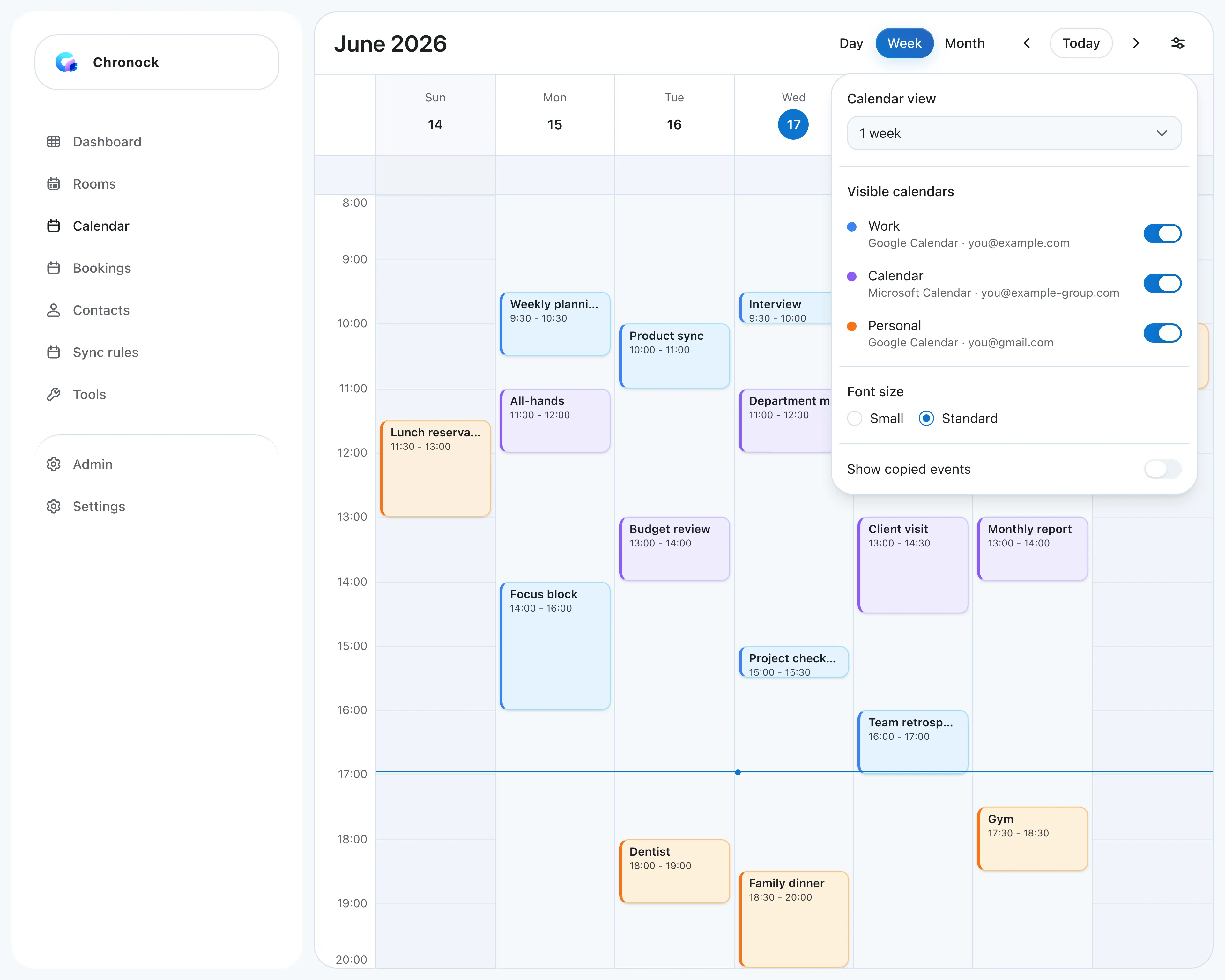 Google and Outlook calendars in one week view. Display settings let you show or hide each calendar.
Turn off “Show copied events” and Chronock’s own copies are hidden, so the same event doesn’t appear twice. For more on this idea, see What Is a Unified Calendar?
Pricing and requirements
- The Free plan includes up to 2 calendar connections across Google and Outlook and one one-way, “Busy status only” sync rule. Copying work Outlook events into a personal Google calendar as “Busy” works on Free.
- Copying titles and descriptions, two-way rules, and multiple rules are on Pro: $9/user/month or $80/year, with a 7-day free trial.
- The Outlook integration works with Microsoft 365 work or school accounts. Personal Microsoft accounts such as Outlook.com and Hotmail are not supported.
- Some companies restrict which third-party apps can connect. Connecting a company Microsoft 365 account may require your admin’s approval.
If your events are in a personal Outlook.com account, use the built-in methods above (Method 2 or 3).
Which method should you choose?
| Method | Follows Outlook changes? | Counts in Google Calendar availability? | Effort | Cost |
|---|---|---|---|---|
| Re-create each event | No | Yes | Every event, every time | Free |
| Forward the invite to Gmail | Sometimes (when organizer updates reach you) | Yes | Every meeting, every time | Free |
| Import an .ics file | No (a snapshot) | Yes | Export and import each time | Free |
| Subscribe by URL | Yes, with a delay | No | One-time setup | Free |
| Chronock automatic copy | Yes | Yes | One-time setup | Free plan for busy-only; Pro to copy titles |
By situation:
| Situation | Start with |
|---|---|
| You need a few events copied once | Re-create each event |
| You are migrating and want past events too | Import an .ics file |
| Seeing Outlook events inside Google Calendar is enough | Subscribe by URL |
| Outlook changes should show up in Google Calendar automatically | Chronock automatic copy |
| Only the time should reach your personal calendar, not the details | A Chronock rule set to “Busy status only” |
For a one-off copy, the built-in tools are enough. If you find yourself copying Outlook events by hand every week, it is time to automate it. For copying between Google calendars, see How to copy, duplicate, or import events in Google Calendar.