How to View Google Calendar and Outlook Together in One Place (Desktop and Phone)
Four ways to see Google Calendar and Outlook in one view: an ICS link, Google in Outlook, a phone calendar app, or an integrated calendar, and what each can do.
Your company runs on Microsoft 365 and Outlook. Your personal life runs on Google Calendar. The daily cost of that split is simple: every time you want the full picture, you open two apps.
You book a late-afternoon call from Outlook, and it lands on top of daycare pickup that only exists in Google Calendar. You plan the weekend from Google Calendar and miss the Friday evening team event in Outlook. In both cases, the problem is that your events live on two screens.
The short answer: Google Calendar cannot add a Microsoft account, so it can’t show your Outlook calendar the way it shows another Google account. There are four practical ways to see both in one place:
- Add your Outlook calendar to Google Calendar by URL (an ICS link)
- Add your Google account to Outlook
- Use a phone calendar app that holds both accounts, such as the iPhone Calendar app
- Use an integrated calendar app that connects to Google and Outlook directly
Below is what each option can and cannot do, based on Google, Microsoft, and Apple help pages as of September 2026. The focus is on seeing both calendars yourself.
Option 1: Add your Outlook calendar to Google Calendar by URL
This is the built-in way to bring Outlook events into Google Calendar. You publish your Outlook calendar as an ICS link, then add that link in Google Calendar.
Microsoft’s Share an Outlook calendar as view-only with others has the Outlook steps. In the new Outlook and Outlook on the web:
- Open Calendar settings, then Shared calendars.
- Under Publish a calendar, pick the calendar and how much detail to share: availability only, titles and locations, or all details.
- Select Publish and copy the ICS link.
Then open Google Calendar on a computer, select the + next to “Other calendars,” choose “From URL,” paste the link, and select “Add calendar.” Google’s help on subscribing to calendars has the steps. Adding a calendar by URL is done from a computer browser, not the mobile app.
The limits:
- Read-only. The Outlook calendar is only displayed in Google Calendar. To create or change an Outlook event, you still open Outlook.
- Slow refresh. You can’t choose when the subscription refreshes, and changes in Outlook can take several hours or longer to appear.
- Your company may turn it off. Microsoft notes that admins can set a policy that prevents calendar sharing. Some companies don’t allow publishing work calendars outside the organization at all.
If you just want a rough view of your Outlook schedule inside Google Calendar, this is free and often enough.
Option 2: Add your Google account to Outlook
The reverse approach puts Google Calendar inside Outlook. Microsoft’s Sync your account in Outlook to the Microsoft Cloud explains that the new Outlook for Windows, the new Outlook for Mac, and Outlook for iOS and Android can sync Gmail accounts, including email, contacts, and calendar.
In each app, you add the Google account under Settings > Accounts, sign in with Google, and grant access. Microsoft has the Mac version in Add a Gmail account to Outlook for Mac. Your Google calendars then appear in Outlook’s calendar list, next to your work calendar.
Unlike an ICS subscription, this syncs Google Calendar as an account. Microsoft lists calendar features for synced Gmail accounts such as recurring meetings, free/busy/tentative/out-of-office status, marking events private, and responding to invitations.
Things to know:
- Classic Outlook for Windows is not covered. For classic Outlook, Microsoft points to importing an .ics file or subscribing instead (View your Google Calendar in Outlook).
- A copy of your Google data goes to the Microsoft Cloud. Before adding a personal Google account to Outlook on a work computer, check your company’s policy.
- Your company can block personal accounts. Admins can prevent users from adding personal accounts to the new Outlook for Windows (Supported accounts in new Outlook for Windows), and can restrict Outlook for iOS and Android to work accounts only.
- Some features are limited. For Outlook for Mac, Microsoft lists known issues, such as event attachments not being supported.
Option 3: Add both accounts to your phone’s calendar app
On iPhone, Apple’s Set up mail, contacts, and calendar accounts walks through it: open Settings, tap Apps > Calendar > Calendar Accounts > Add Account, then add a Microsoft Exchange account and a Google account. For a company Microsoft 365 account, see Apple’s Set up Exchange ActiveSync on your iPhone, iPad, or Apple Vision Pro. In the Calendar app, you then choose which calendars to show.
On Android, the option Microsoft documents is Option 2: add your Google account to the Outlook app.
Both are free. Depending on how your company manages devices, you may not be able to add your work account to the iPhone Calendar app, or add anything other than your work account to the Outlook app. If it doesn’t work, ask your IT admin.
For admins: Google Workspace Calendar Interop with Exchange
If your organization runs Google Workspace and Microsoft 365 (Exchange Online) side by side, there is an admin-level feature. According to Google’s About Calendar Interop, an administrator can set it up so that users in Google Calendar and Exchange see each other’s availability, and Google Calendar users can book Exchange rooms.
It is configured for the organization, so it doesn’t help if you want your personal Google Calendar and your work Outlook calendar on your own screen.
Option 4: Use an integrated calendar app
Some apps connect to Google and Outlook directly, each as its own account, and show everything in one view. As of September 2026, Notion Calendar’s site lists support for Google Calendar, Outlook, and iCloud calendars, and Morgen’s site lists Google, Outlook, Apple, and other calendars. You don’t need to publish an ICS link, and many of these apps let you create events in either calendar from the same screen. For a wider comparison, see What Is a Unified Calendar?.
How the options compare
| Option | See both | Edit both | What others see of your busy time | Update speed | Cost | Admin needed |
|---|---|---|---|---|---|---|
| Outlook ICS link in Google Calendar | In Google Calendar | No (Outlook side is read-only) | No change | Slow (can be hours) | Free | No, but publishing may be disabled |
| Google account in Outlook | In Outlook | Yes, with some limits | No change | Follows account sync | Free | No, but personal accounts may be blocked |
| iPhone Calendar with both accounts | On your phone | Yes | No change | Follows account sync | Free | No, but device management may restrict it |
| Calendar Interop | Availability only | No | Availability is shared | Depends on admin setup | Requires both services | Yes |
| Chronock (integrated calendar) | One view | Yes | Updated once you turn on automatic copying | Real time | Free for 2 connections | No, unless your company restricts third-party apps |
The column that matters most is “what others see.” Options 1 to 3 only put the other calendar on your screen. When a coworker checks your availability in Outlook, time taken by personal Google events still looks free.
After seeing: make your availability match
If coworkers and booking tools should also see the right availability, copy events onto the other calendar as real events instead of just displaying them.
- To keep coworkers and booking tools from booking over your personal time: How to Sync Google Calendar with Outlook
- To move Outlook events into Google Calendar, one at a time or in bulk: How to Copy Outlook Calendar Events to Google Calendar
- If your calendars are two Google accounts, not Outlook: How to View Multiple Google Calendar Accounts in One Calendar
How Chronock shows Google Calendar and Outlook in one view
Chronock is an integrated calendar with scheduling and automatic event copying built in. It shows your Google calendars and your Outlook (Microsoft 365) calendar in one view, and lets you create events in either one.
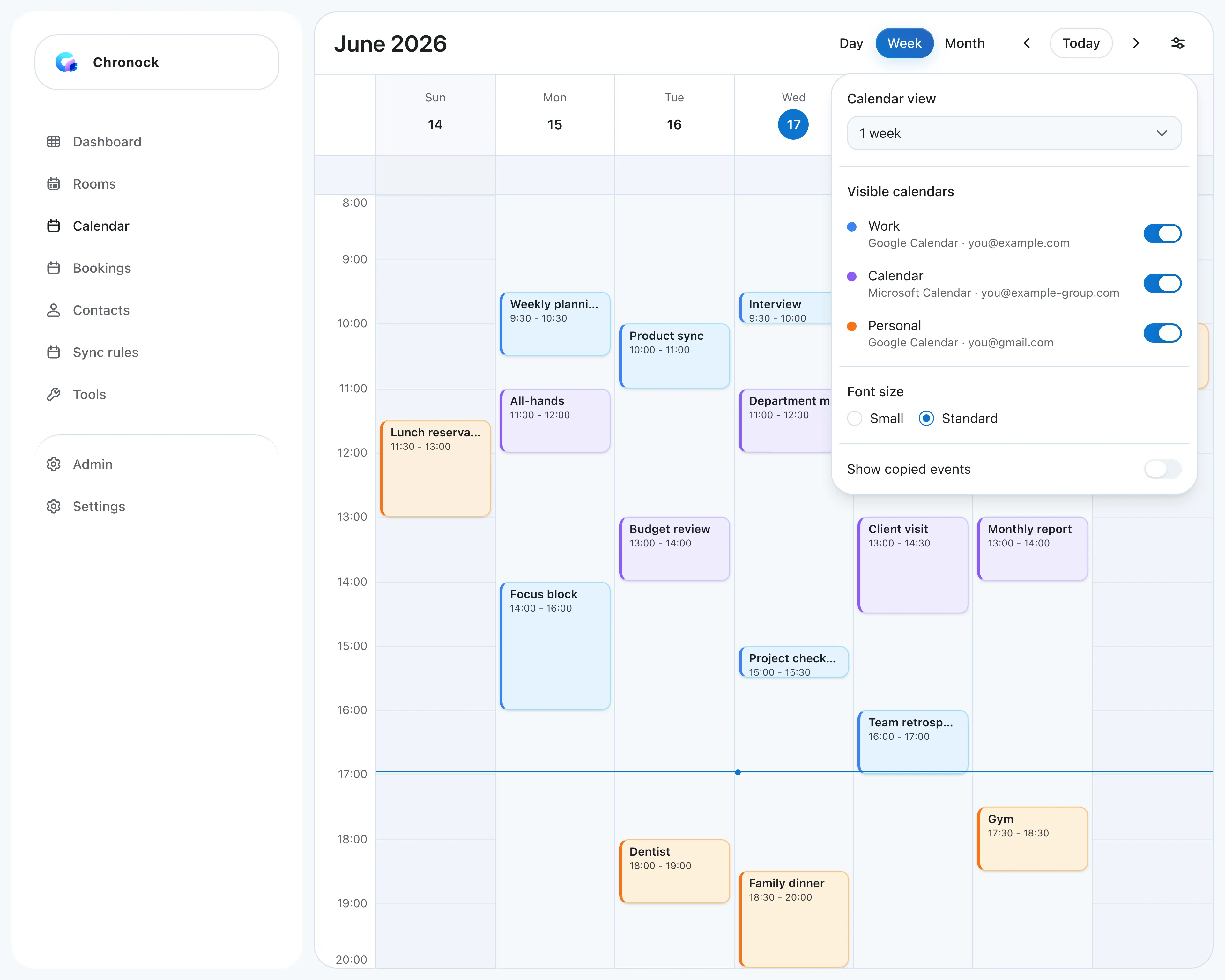 Google Calendar and Outlook events in one week view. Each calendar can be turned on or off in the display settings.
Connect Google and Microsoft 365 directly
In Chronock, you connect each Google account and your Microsoft 365 account on their own. There is no ICS link to publish and no Google account to add to Outlook, so this works even when your company doesn’t allow publishing calendars outside the organization.
Some companies do restrict which third-party apps can connect to work accounts. If your Microsoft 365 account can’t connect, ask your IT admin to allow it.
View both and choose where each event is saved
The integrated calendar shows every connected calendar together in day, 2-day, 3-day, week, or month view. Turn individual calendars on or off in the display settings. Changes to events show up in real time.
You can create, edit, and delete events from the same screen, and choose which Google or Outlook calendar each new event is saved to. For Outlook events, you can change the availability status and privacy, and add a Teams meeting on supported Microsoft 365 calendars. Google Meet and Zoom links are supported too. Some events, such as ones you were invited to and bookings, are view-only.
Your events still live in Google Calendar and Outlook. Chronock doesn’t replace either one. It is a single screen on top of them.
Add automatic copying and booking pages when you need them
When you want coworkers to see accurate availability too, set up a sync rule in the same app. Chronock can copy work Outlook events to your personal Google Calendar, or personal Google events to your work Outlook calendar, as events titled “Busy” with no details. The copies are real events, so they count in your coworkers’ free/busy lookups, and they update or disappear when the originals change.
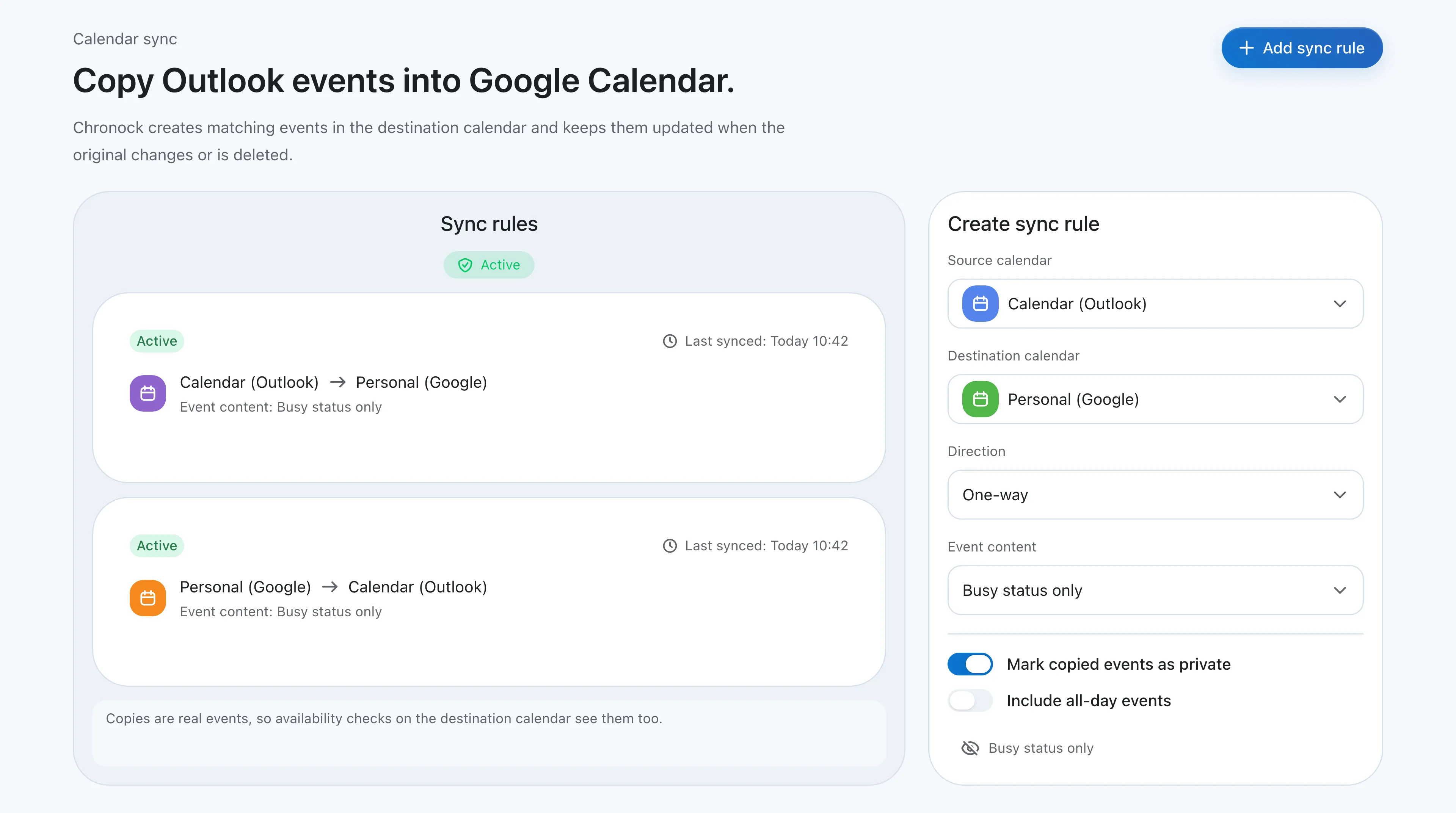 Busy-only rules from Outlook to Google and from Google to Outlook.
Turn off “Show copied events” in the integrated calendar and the copies stay hidden, so the same event doesn’t appear twice. Booking pages and candidate-time suggestions also check both your Google and Outlook calendars and offer only times that are free in both.
Pricing and supported accounts
The Free plan includes up to 2 calendar connections across Google and Outlook. That covers a company Outlook calendar and a personal Google Calendar in one view, plus one one-way, busy-only sync rule. To connect more calendars, copy in both directions, or copy event titles, you need Pro at $9/user/month or $80/year, with a 7-day free trial. See the pricing page for details.
Outlook support covers Microsoft 365 work or school accounts. Personal Microsoft accounts (Outlook.com, Hotmail) are not supported. If your Outlook calendar is on Outlook.com, use one of the built-in options above.
Which option should you choose?
| Situation | Best fit |
|---|---|
| You want a rough view of Outlook inside Google Calendar | Add the Outlook ICS link to Google Calendar |
| You live in Outlook and want your personal Google events next to work | Add your Google account to Outlook |
| You only need both on your phone | iPhone Calendar, or the Outlook app with both accounts |
| Your organization runs Google Workspace and Microsoft 365 side by side | Ask your admin about Calendar Interop |
| You can’t publish your work calendar or add personal accounts to Outlook | An integrated calendar app that connects each account directly |
| You want one view, event creation in both, plus busy-time copying and booking pages | Chronock |
If you only need to see your own events, start with the built-in options. When the ICS delay or switching apps to add events becomes a regular annoyance, move to an integrated calendar that connects to both directly.