Copy or duplicate Google Calendar events: multiple dates, mobile
Duplicate a Google Calendar event, copy it to multiple dates or another calendar, copy a whole week, or duplicate on mobile. Quick answers, CSV template, FAQ.
Sooner or later, everyone needs a second copy of a Google Calendar event.
Maybe you want another event just like last week’s meeting. Maybe the same event should go on several dates. Maybe a work event should also appear on your personal calendar, or you want to repeat an entire week.
Google Calendar can do most of this, but the options are split between the “Duplicate” and “Copy to” menu items and the calendar picker on the edit screen, and it is easy to pick the wrong one. This article organizes every method by what you are trying to do.
Quick answer: which method to use
| What you want to do | Method |
|---|---|
| Make another event like an existing one | “Duplicate” the event (Method 1) |
| Put the same event on multiple dates | A custom recurring event for a regular pattern; duplicate or import a CSV for irregular dates (Method 2) |
| Keep the event and add it to another calendar | “Copy to” another calendar (Method 3) |
| Show one event on two of your accounts | Invite your other account as a guest (Method 4) |
| Copy a whole week of events | Recurring events, or a CSV import (Method 5) |
| Duplicate or move an entire calendar | Export and import (Method 6) |
| Keep future events copied to another calendar automatically | A calendar sync tool (below) |
Google Calendar has no copy-and-paste keyboard shortcut for events. Use “Duplicate” instead.
Duplicate, copy, and move are different things
Start with the vocabulary, because Google Calendar uses distinct names for similar-looking actions.
| Action | Meaning |
|---|---|
| Duplicate | Create another event with the same details. You can change the date, time, and calendar before saving |
| Copy to another calendar | Keep the original and create the same event on a different calendar |
| Move (change calendar) | Transfer the event to another calendar; it disappears from the original |
| Transfer (export and import) | Export a whole calendar and load it into another calendar or account |
If you want the same event visible on several calendars, you want copy. If you want the event to belong to a different calendar, you want move. Mixing these up makes events look like they vanished.
Method 1: Duplicate an event on the same calendar
When you need another event similar to an existing one, use Duplicate.
- Open Google Calendar in a desktop browser.
- Click the event to open its details.
- Open the options menu (three dots) and choose “Duplicate”.
- Adjust the date, time, or title in the edit screen and save.
The duplicated event is independent from the original. Guests, description, and notification settings carry over, which makes this handy for “same meeting, same people, next week” situations.
Duplicate an event on your phone
If your Google Calendar app shows “Duplicate” in the event’s three-dot menu, select it, change the date in the edit screen, and save. Menu options can differ by platform and app version. If you do not see “Duplicate”, open calendar.google.com on a computer and use Method 1. Google’s mobile browser guide describes creating, editing, and deleting events, so opening the site on your phone is not a reliable fallback for duplication.
There is no copy-and-paste shortcut
Google’s list of Google Calendar keyboard shortcuts covers actions such as creating an event, opening details, deleting, undoing, and saving. It has no shortcut for copying, pasting, or duplicating an event, and Ctrl+C / Ctrl+V (or ⌘+C / ⌘+V) do not copy events.
The fastest manual route is to click the event and choose “Duplicate” from its menu.
Method 2: Copy an event to multiple dates
Google Calendar cannot select several dates and add one event to all of them at once. The best method depends on whether the dates follow a pattern.
Regular dates: use a custom recurring event
For patterns like every Monday, Wednesday, and Friday, every other Tuesday, or the second Thursday of each month, a recurring event is the most reliable option.
- In the event’s edit screen, click the field that says “Does not repeat”.
- Choose “Custom”.
- Set the interval (weekly, every 2 weeks, and so on), the days, and an end date or number of occurrences, then save.
A recurring event is managed as one series, so later changes to time or location can be applied to “This and following events” or “All events” at once. Google Calendar limits a repeating event to 730 occurrences (Create a recurring event).
Irregular dates: duplicate one by one
For dates with no pattern, such as the 5th, 12th, and 20th, duplicate the event (Method 1) and change only the date each time. For a handful of events, this is the quickest option.
If the dates are close to a pattern, you can also create a recurring event and delete only the occurrences you do not need (“This event”).
Many dates: import a CSV file
For 10, 20, or more dates, create a CSV file and import it. Google Calendar accepts .csv and .ics files on a computer (Import events to Google Calendar).
Subject,Start Date,Start Time,End Date,End Time
Team sync,10/05/2026,10:00 AM,10/05/2026,11:00 AM
Team sync,10/12/2026,10:00 AM,10/12/2026,11:00 AM
Team sync,10/20/2026,2:00 PM,10/20/2026,3:00 PM- The header row must be in English. Only
SubjectandStart Dateare required. - You can add
Description,Location,All Day Event, andPrivatecolumns. Wrap any value that contains a comma in quotation marks. - Import from a computer: Settings → “Import & export” → select the file → choose the destination calendar → “Import”.
- Guests and conference data are not imported.
Each imported row becomes a separate, independent event. To change the time later, you edit them one by one, so use a recurring event whenever the dates follow a pattern.
Method 3: Copy an event to another calendar
To keep the original event and create the same event on another calendar, use “Copy to”.
Google’s help article on transferring calendars or events covers this operation.
- Open Google Calendar in a desktop browser.
- Open the event you want to copy.
- From the options menu, choose “Copy to” and select the destination calendar.
- Review the details in the edit screen and save.
You need write access to the destination calendar. To copy into another account’s calendar, have that calendar shared with you first with “Make changes to events” permission.
On a phone, if your app offers “Duplicate”, you can duplicate the event and pick the destination calendar in the edit screen before saving. If neither “Copy to” nor “Duplicate” is available, use Google Calendar on a computer. Changing the calendar of an existing event is a move, so the event leaves the original calendar.
The copied event is not linked to the original. If the original moves to a new time, the copy keeps the old one. This is the root of the “manual copying breaks down” problem covered later.
Method 4: Show the same event on multiple calendars
If the goal is one event visible on several calendars, you have three realistic options.
1. Copy the event to each calendar
Repeat Method 3 for every calendar that should show the event. Fine for one-off events.
2. Invite your other account as a guest
If the second calendar belongs to another account of yours, add that account’s email address as a guest. Once accepted, the event appears on both calendars.
Unlike copying, the event stays a single event. When the organizer changes the time, both calendars update. Between two of your own accounts, this is the most robust manual option.
3. Use a calendar sync tool
If future events should keep flowing to other calendars automatically, automatic sync is the practical answer. More on that below.
Method 5: Copy a whole week of events
“Copy last week into this week” is a common wish, but Google Calendar has no multi-select or week-level copy.
The realistic options are:
- If the week repeats, make each event a weekly recurring event.
- For a handful of events, duplicate them one by one (Method 1).
- For many events, list the week’s events in a CSV file and import it (Method 2).
You can also export an .ics file, edit the dates, and re-import it, but a formatting mistake can cause import errors or flood your calendar with duplicates. A CSV you edit in a spreadsheet is safer and easier to check.
Method 6: Duplicate or migrate an entire calendar
To clone a whole calendar or move it to another account, use export and import.
- Export the calendar from Google Calendar settings (an
.icsfile). - Create a new calendar at the destination.
- Use “Import & export” in settings to load the file into the new calendar.
Google’s help article on importing events into Google Calendar has the full steps.
Imported events are a snapshot. They do not stay in sync with the source calendar, so treat this as a migration or bulk-load tool.
A note on “forwarding” an event to another account
When people say they want to forward a Google Calendar event, they usually mean one of three things.
- Make the event appear on someone else’s calendar: add their email address as a guest (the guest invitation from Method 4). This also works for your own second account.
- Receive an invitation at a different address: you can forward the invitation email itself, but if the organizer has disabled “Guests can invite others”, the forwarded address cannot register. The reliable route is to ask the organizer to add the address as a guest, or to add it yourself if you are allowed to modify the guest list.
- Move a whole calendar to another account: use the export and import flow from Method 6.
“Forwarding” blurs three separate operations (inviting, sharing, and migrating). Start by deciding whether you are dealing with a single event or a whole calendar, and whether the goal is showing it to someone else or moving it to your own other account.
FAQ
Can I copy and paste an event in Google Calendar?
Not with a keyboard shortcut. Open the event, choose “Duplicate” from its menu, change the date or time, and save.
Can I add the same event to multiple dates at once?
There is no way to select several dates and add one event to all of them. Use a custom recurring event for a regular pattern, duplicate the event for a few irregular dates, or import a CSV file for many dates (Method 2).
Can I duplicate an event on my phone?
If the event’s three-dot menu in your Google Calendar app includes “Duplicate”, select it and change the date before saving. Availability can differ by platform and app version. If the option is missing, use Google Calendar on a computer and follow Method 1.
Why does the same event show up twice?
Usually the same event exists on two calendars and both are visible: a copy and its original, or an invitation on one account and the same event on another. Check which calendar each one belongs to, then hide the extra calendar in the left-hand list or delete the duplicate.
Does a copied event update when the original changes?
No. Duplicated, copied, and imported events are separate events. Changing or deleting the original does not affect the copy.
The limit of manual copying: copies do not follow the original
Every method above takes a picture of the event as it is right now. The shared weakness: copies do not track later changes.
- Time changes on the original never reach the copy.
- Cancelling the original leaves the copy behind.
- Weekly copy routines eventually miss an event or leave a stale one.
For one-off copies this does not matter. But for ongoing routines, such as reflecting your work events on your personal calendar every week, the copying itself becomes the source of double bookings.
We compare copy, move, import, and automation in more depth in How to auto-copy Google Calendar events to another calendar.
For ongoing copies, sync instead of copy
Chronock is a unified calendar app with scheduling links and automatic event copying. It copies events automatically between Google Calendars, and between Google Calendar and Outlook (Microsoft 365).
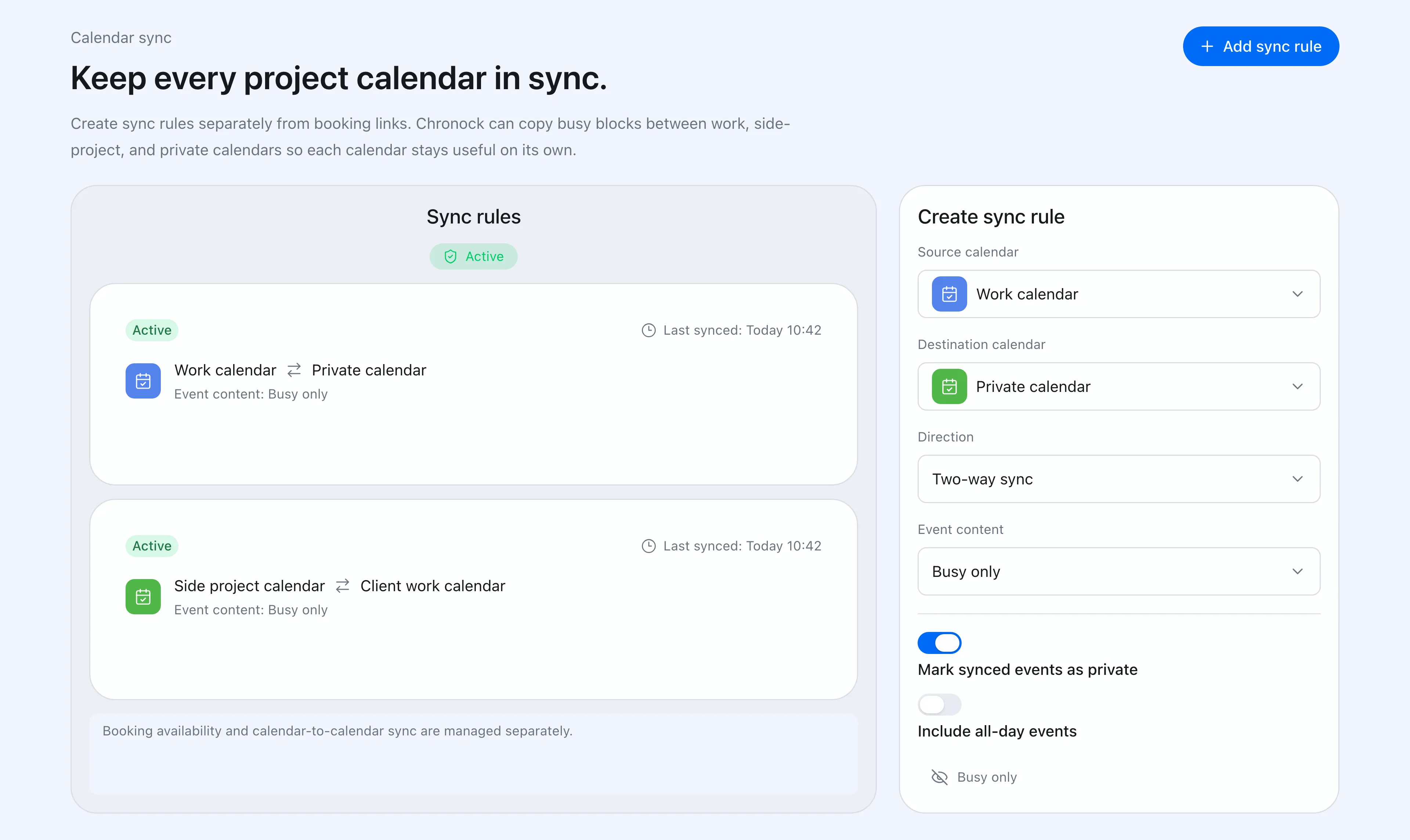 Chronock lets you create and manage calendar sync rules from the app.
Create a sync rule once, and the destination calendar follows event creation, changes, and deletions on the source calendar. Copies no longer stay at the old time, so a moved meeting does not leave a stale block behind or open the door to a double booking.
Destination visibility is configurable, so personal events can appear on a work calendar as busy-only blocks without exposing details.
The Free plan includes one one-way, busy-only sync rule and up to 2 connected calendars in total across Google and Outlook. Free also includes a scheduling link that checks availability across your connected calendars. Pro adds multiple rules, two-way sync, copying titles and descriptions, and unlimited connections, with a 7-day free trial. See pricing for details.