How to Block Family Events on Your Work Calendar as Busy (Pickups, Appointments, School Events)
Daycare pickup, pediatrician visits, school conferences: how to show family events on your work calendar as Busy without sharing any of the details.
Daycare pickup is at 5:30. There’s a pediatrician appointment Tuesday morning and a parent-teacher conference Thursday afternoon. All of it is on the family calendar. None of it is on your work calendar, so a meeting invite arrives for 5:30.
Family events belong on a calendar the whole household can see. But when coworkers schedule a meeting, they only look at your work calendar. The family calendar and the work calendar are separate, and that gap is where the conflicts come from.
This isn’t only a two-parent-household problem. It affects single parents, families where grandparents help with pickup, and anyone else whose workday has to leave room for their children’s schedules.
The short answer: if pickup is at the same time every day, a recurring private event on your work calendar is enough. If family events are irregular or other people in the household change them, set up an automatic one-way copy from the family calendar to your work calendar that shows only “Busy.” Coworkers see the time as taken, and nothing about your family reaches your company account.
Why family and work calendars drift apart
A family calendar usually lives somewhere the whole household can reach: a Google family calendar, a shared Google Calendar, or a family calendar app like TimeTree. That’s the right place for it. It lets parents, partners, grandparents, or whoever handles pickup that day see the same plan.
Your work calendar lives in your company’s Microsoft 365 (Outlook) or Google Workspace account. You don’t share your company account with your family, so the two calendars stay apart by design.
Keeping them apart is fine. The problem is that unless you re-enter family events on your work calendar, coworkers see those hours as free.
Option 1: Show the family calendar in your work account
The first idea most people try is to make the family calendar visible from their work account.
Add a Google family calendar or shared calendar
When you create a family group on Google, a calendar called “Family” is created automatically, and family members can view and change its events (Google Calendar Help). But you can’t join a family group with a work or school account (Google For Families Help). To see the family calendar from a Google Workspace work account, you’d have to share it from your personal account to your work account.
That only works if your company allows sharing with outside accounts. Some organizations block it.
Add the family calendar to Outlook
If your company uses Outlook, you can subscribe to a Google calendar’s iCal address and display it in Outlook.
This only changes what you see. A subscribed calendar doesn’t add events to your work calendar, so a coworker checking your availability in the Scheduling Assistant still sees 5:30 as open. Subscribed calendars can also take a while to refresh.
Both approaches help you avoid missing family events yourself. Neither stops coworkers from booking over them.
Option 2: Add busy blocks to your work calendar by hand
For coworkers to see the time as taken, the event has to be on your work calendar itself. The dependable manual approach is to create a matching event there:
- Use a neutral title such as “Personal,” “Out,” or “Busy”
- Mark it Private (the setting is called Private in both Google Calendar and Outlook) to hide the details
- For a fixed daily pickup, make it a recurring event
Private events look slightly different to coworkers in Google Calendar and Outlook. We compare the two in How to Add Personal Appointments to Your Work Calendar.
If the only thing to block is a pickup at the same time every day, one recurring event solves it. The trouble is everything irregular: pediatrician visits, parent-teacher conferences, swim class drop-off on the weeks it’s your turn. Each one has to be entered twice, and every change has to be made twice. When someone else in the household moves an event on the family calendar, your work calendar stays wrong until you notice.
If your family uses TimeTree or a similar app
Family calendar apps like TimeTree are built for sharing plans inside the household. Everyone in the family can add events, and for keeping the household coordinated, that may be all you need.
Chronock doesn’t connect to TimeTree. If you want family commitments to appear on your work calendar automatically, one option is to keep the events that affect your working hours, such as pickups and appointments, in a shared Google calendar. Day-to-day household plans can stay in TimeTree; anything that needs to block work time goes in Google Calendar.
Copying family events to your work calendar with Chronock
Chronock is an integrated calendar with scheduling and automatic event copying built in. Your events stay in Google Calendar and Outlook; Chronock doesn’t replace either of them.
To put family events on your work calendar, create a sync rule with the family calendar as the source and your work calendar as the destination.
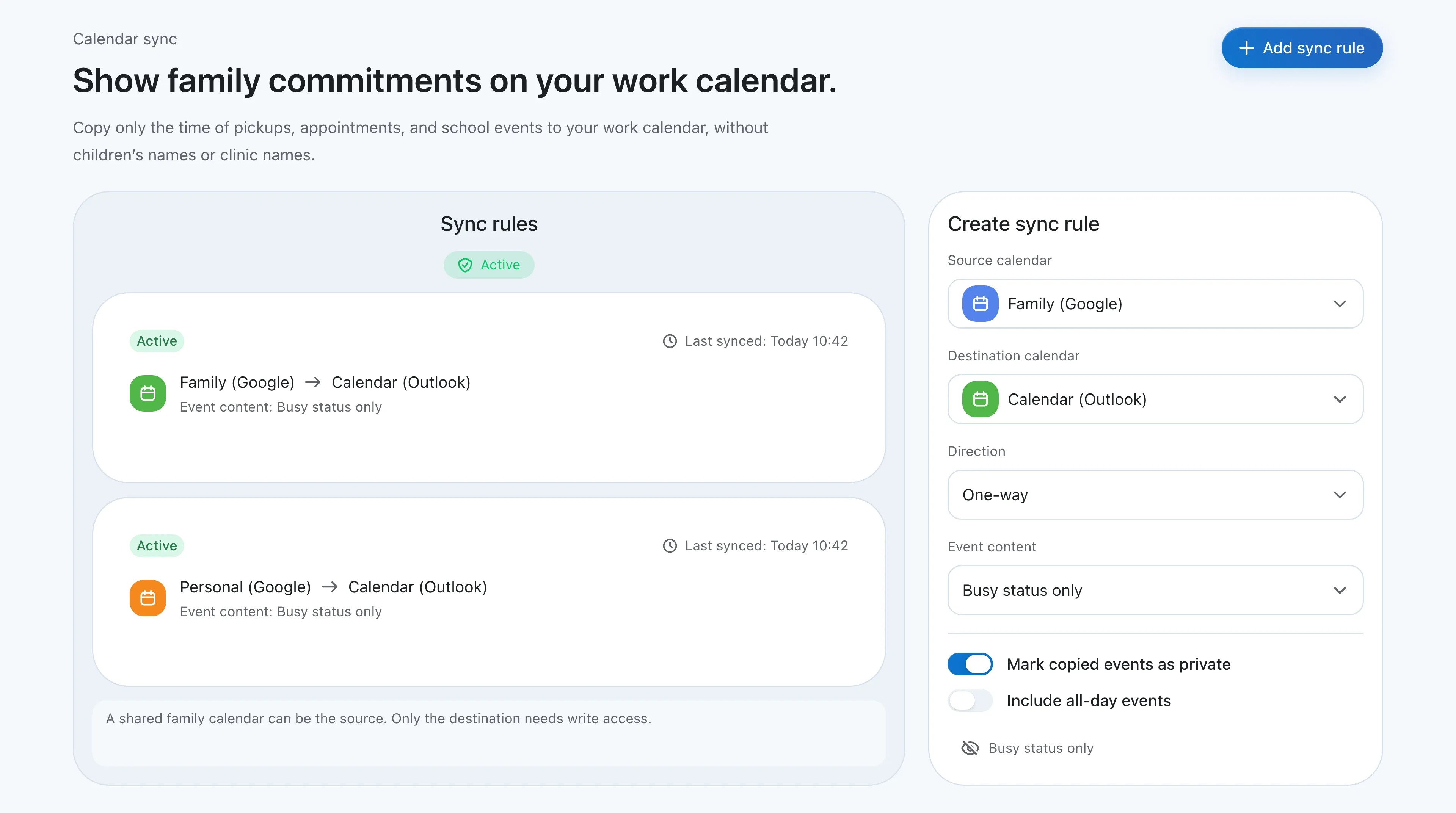 Two one-way, busy-only rules copying a shared family Google calendar and a personal Google calendar into a company Outlook calendar.
A shared family calendar can be the source
If the family calendar is shared with your Google account, it can be the source of a one-way rule as long as you can see event details, even without edit rights. A calendar shared as free/busy only will not work as a source. Only the destination, your work calendar, needs write access. You don’t need to ask whoever owns the family calendar for edit rights.
Your work calendar gets “Busy” and nothing else
With the event content set to “Busy status only,” each copy is created on your work calendar with the title “Busy.” No children’s names, no clinic names, no school names reach your company account. Turn on “Mark copied events as private” and each copy is also marked Private.
The copies are real events on your work calendar, so coworkers’ availability checks and room booking see the time as taken. When someone in the household moves the pediatrician appointment or the conference is canceled, the copy on your work calendar is updated or removed automatically.
Google to Outlook works too
The family calendar can be in Google while your company uses Microsoft 365 Outlook. Chronock copies across the two. If your company is on Google Workspace instead, the setup is the same. For more on the Google and Outlook combination, see How to Sync Google Calendar with Outlook.
- Chronock’s Outlook integration works with Microsoft 365 work or school accounts. Personal Microsoft accounts such as Outlook.com and Hotmail are not supported
- Your company’s admin may restrict third-party app access to work accounts. If the connection is blocked, ask your IT admin to allow it
See family and work in one week view
Coworkers see “Busy.” You want to see the actual plan. Chronock’s integrated calendar shows your company Outlook calendar, the shared family calendar, and your personal Google calendar together in one week view.
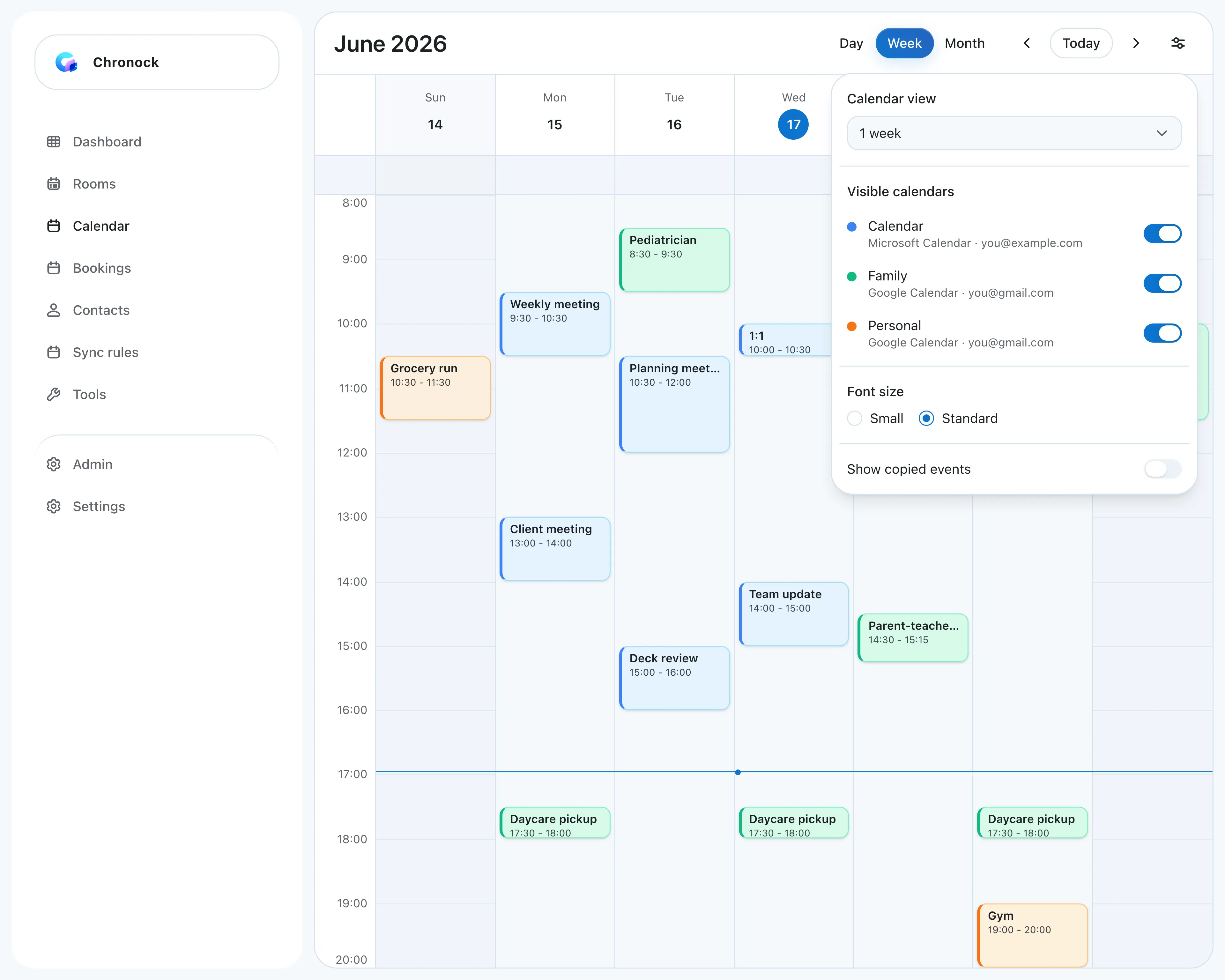 A company Outlook calendar, a shared family calendar, and a personal calendar in one week. Each calendar can be shown or hidden in the display settings.
Turn off “Show copied events” in the display settings, and each family event shows once instead of appearing next to its “Busy” copy. You can also create events from the integrated calendar and choose which calendar they’re saved to, as long as you have write access to that calendar.
Free and Pro
The Free plan includes up to 2 calendar connections across Google and Outlook, plus one one-way, busy-only sync rule. Copying the family calendar into your work calendar fits within Free.
If you also want your own personal calendar copied into your work calendar, that’s a second source and a second rule, which needs Chronock Pro: $9/user/month or $80/year, with unlimited connections and rules and a 7-day free trial.
For more on managing family and work schedules together, see the working parents use case. For the general idea of sharing only the time and hiding the details, see How to share only “busy” times in Google Calendar.
Which option should you choose?
| Situation | Start with |
|---|---|
| You just need to see family events yourself | Show the family calendar in your work account or in Outlook |
| Only a fixed daily pickup needs blocking | A recurring private event on your work calendar |
| Many irregular events: pediatrician visits, school events, activity drop-offs | Automatic busy-only copy from the family calendar |
| Other people in the household often change family events | Automatic busy-only copy from the family calendar |
| Family calendar in Google, work calendar in Outlook | One-way, busy-only copy from Google to Outlook |
| Your family plans in TimeTree | Put work-affecting events in a Google calendar and copy from there |
Your coworkers don’t need to know what the family commitment is. They only need to know the time is taken. Once events on the family calendar show up on your work calendar as “Busy,” you stop re-entering them, and pickup times and appointments stay protected.