How to share only specific events in Google Calendar
Share individual Google Calendar events without exposing your whole calendar. Compare guest invitations, a dedicated shared calendar, and per-event privacy settings — plus how to avoid managing two calendars by hand.
Dieser Artikel ist derzeit nur auf Englisch verfügbar.
Google Calendar sharing works at the calendar level. Share a calendar, and by default every event on it becomes visible to the other person.
But often you only want to share a subset:
- Show family only the evenings you’ll be home late
- Give an assistant visibility into one client’s meetings, nothing else
- Share only side-business events with a side-business client
This article covers three ways to share only specific events in Google Calendar, when each one fits, and how to keep the setup manageable over time.
Method 1: Add the other person as a guest on each event
If you only need to share a handful of events with a known person, the simplest tool is the guest invitation.
- Open the event you want to share in Google Calendar.
- Enter the person’s email address under “Add guests”.
- Save and send the invitation.
Once they accept, that single event appears on their calendar. Time changes and cancellations propagate automatically, so there is nothing to maintain afterwards.
This fits events where the other person is a participant — meetings, interviews, appointments. It fits poorly when you want to share many events the person doesn’t attend; a stream of invitation emails quickly becomes noise.
Method 2: Create a dedicated calendar and put shareable events on it
To share a whole theme of events — one client, one project — the standard approach is a dedicated shared calendar.
- In Google Calendar, click “+” next to “Other calendars” and choose “Create new calendar” (official help).
- Open the new calendar’s “Settings and sharing” and add the people who should see it (share your calendar).
- Create shareable events directly on this calendar.
- For existing events, use “Copy to” from the event menu to copy them onto the shared calendar.
The other person sees only this calendar; everything else on your main calendar stays invisible. You control the shared scope by calendar, which scales well for “only project X” or “only client A” situations.
Two caveats:
- Copied events do not follow the original — if the original moves, the copy stays put.
- “Move” (change calendar) removes the event from the original calendar, which changes what you see.
Method 3: Share the calendar, but mark private events as “Private”
You can also invert the approach: share the whole calendar and hide only the events you don’t want seen.
Open an event and set its visibility to “Private”, and people who see your calendar through view-level sharing get only a busy block — no title, no details (official help).
Two limits matter here. Anyone you have granted “Make changes to events” or higher permission can still open private events, and Google Workspace admin settings can change how private events appear. Treat “Private” as hiding details from viewers — not from editors or administrators.
If the events you want hidden are the minority, this is the quickest option. But an event you forget to mark private is fully visible, so avoid this method when a missed setting would be a real problem.
If you want to hide all details and share only your busy times, see How to share only “busy” times in Google Calendar.
Choosing between the three methods
| Goal | Best fit |
|---|---|
| Share a few events the other person attends | Guest invitations |
| Share all events for one client or project | Dedicated shared calendar |
| Share most events, hide a few | Per-event “Private” visibility |
| Share only busy times, no details | Busy-only sharing or sync |
The catch with dedicated calendars: availability checks may not see them
Within a single Google account, a dedicated calendar does not split your own view — Google Calendar overlays all your calendars on one screen. The friction shows up elsewhere.
- Every new event needs a decision: which calendar does this go on?
- When the dedicated calendar lives in another account — a client’s workspace, a second Google account — its events are not part of your main account’s view or availability.
- Free/busy checks, booking pages, and tools that read only your primary calendar treat time on the dedicated calendar as free.
- Working around that with manual copies means every reschedule must be fixed in two places.
With one small shared calendar this is manageable. As shared calendars multiply, missed copies and stale blocks become a source of double bookings.
Chronock can reflect the dedicated calendar onto your primary calendar
The calendar sync in Chronock, a scheduling and calendar-sync tool, can automatically create matching events on your primary calendar from the dedicated calendar — including across separate accounts.
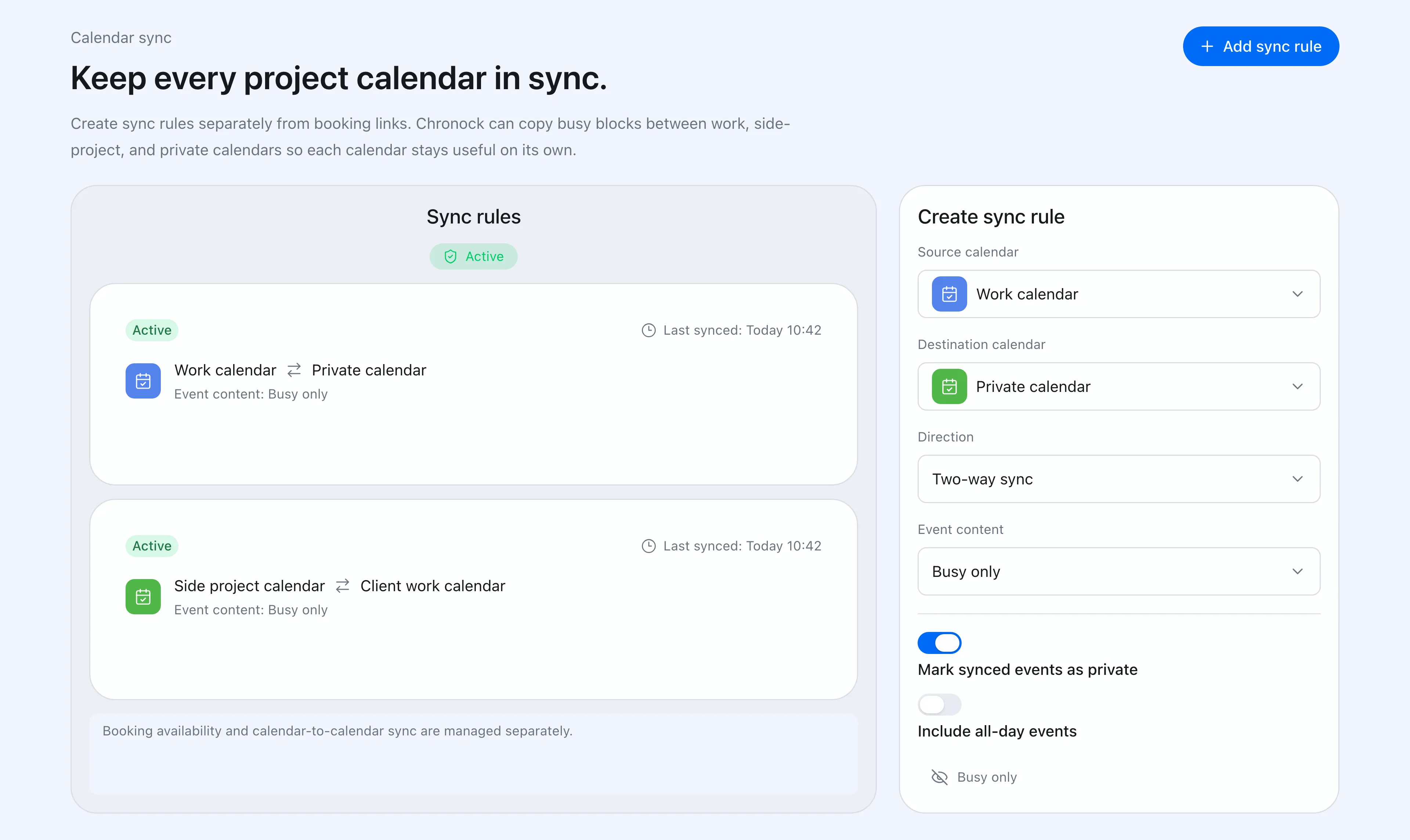 Chronock lets you configure source, destination, direction, and how much detail appears on the destination calendar.
Keep sharing the “Client A” calendar with your client, sync its events into your primary calendar, and everything that reads your primary calendar — free/busy checks, booking pages, coworkers — treats those times as booked. Because sync follows changes and deletions on the source, there are no stale copies to clean up.
For the opposite need — showing someone only your busy times without sharing a calendar at all — busy-only sync does the job. If you split calendars for a side business, the side-business calendar workflow shows the full setup.
The Free plan includes one one-way, busy-only calendar sync rule. Multiple rules, two-way sync, and title or description visibility are available on Pro (7-day free trial).